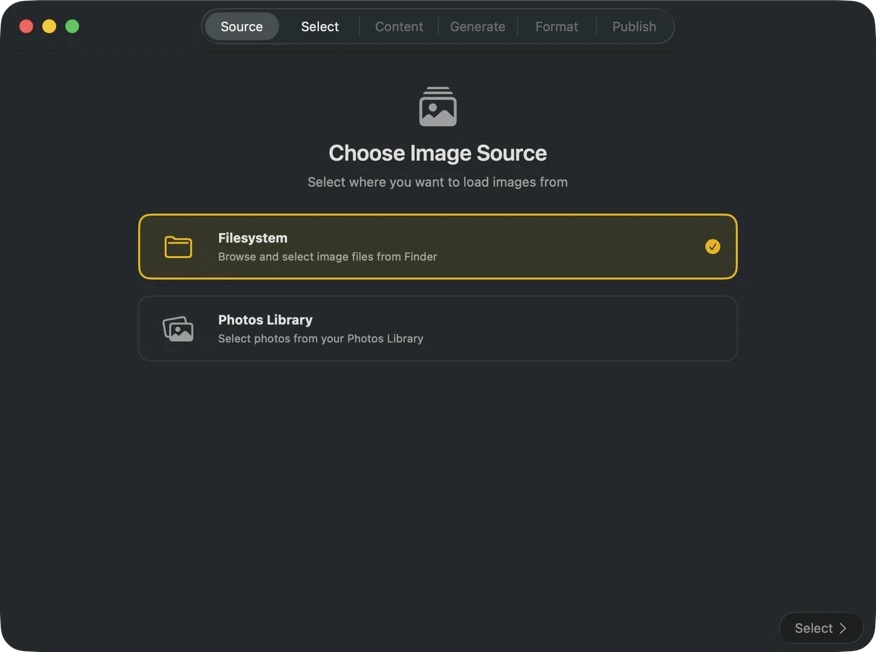
Skip to content

Generate image metadata. Locally.

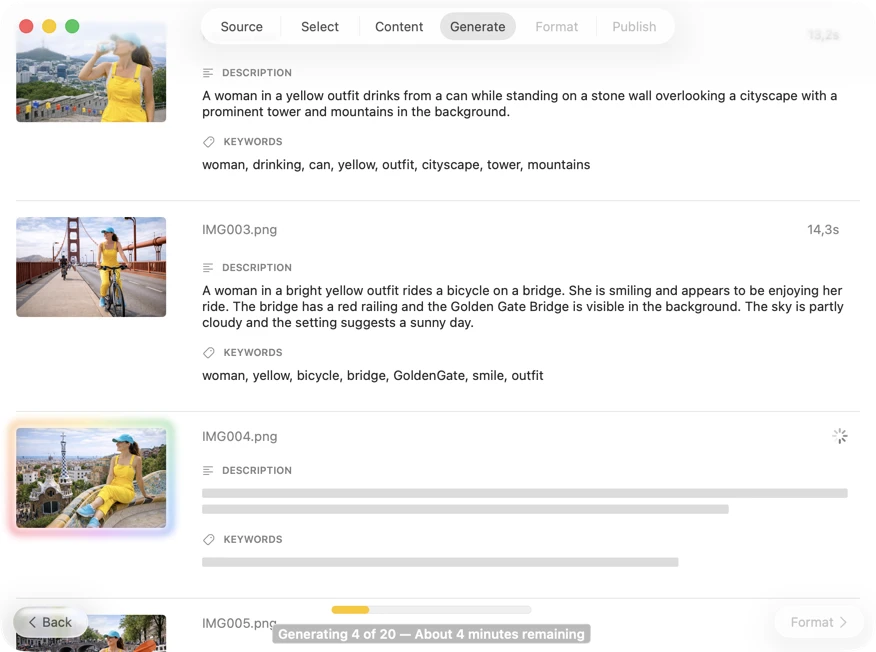
Create rich, structured metadata from images using local vision models — without uploads, subscriptions, or data leaving your Mac.

Requires Apple Silicon Mac with macOS 26
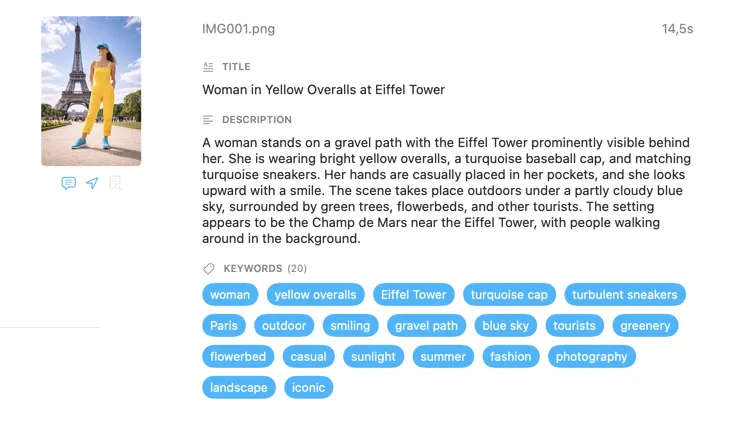
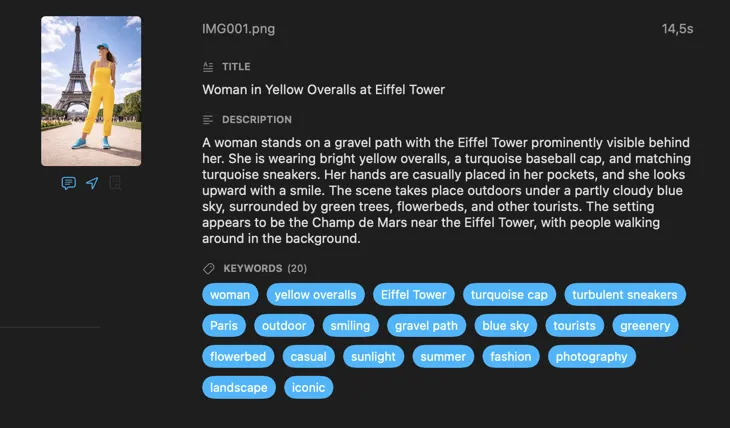
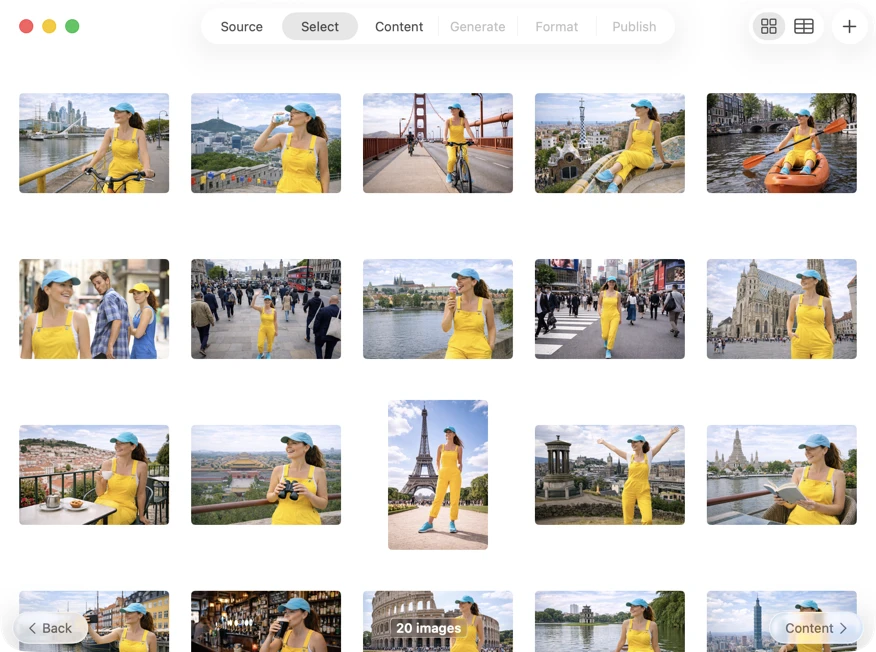
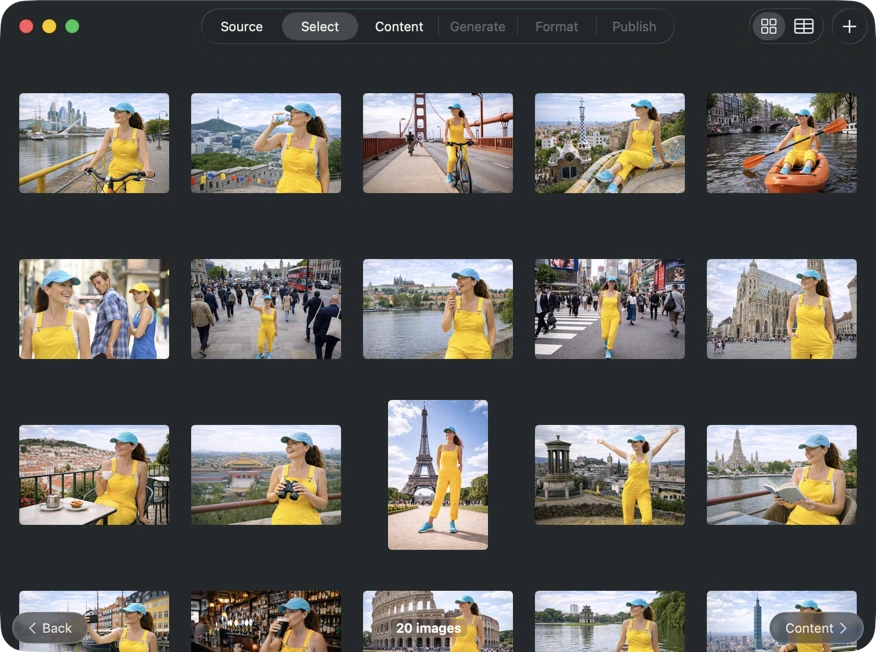
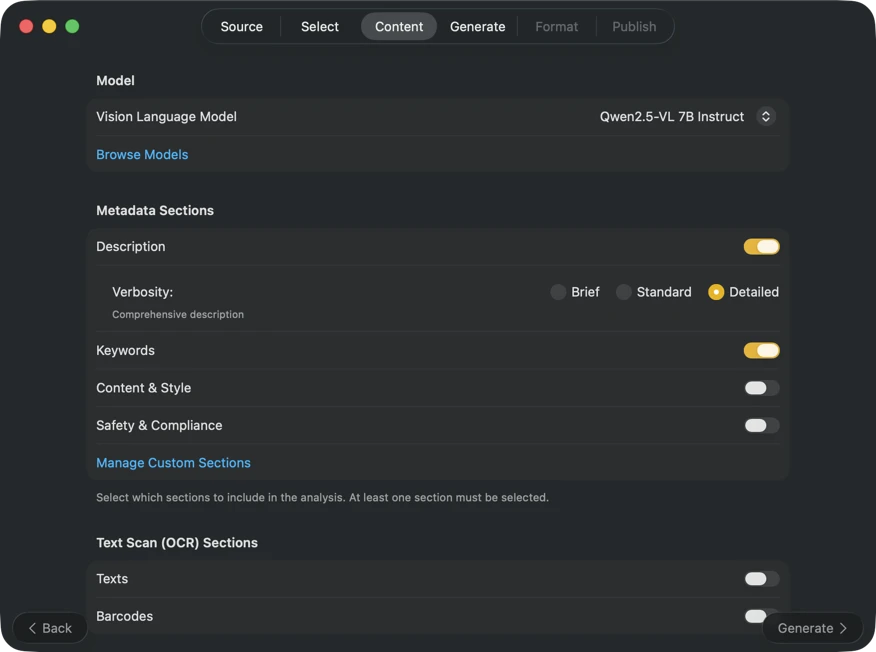
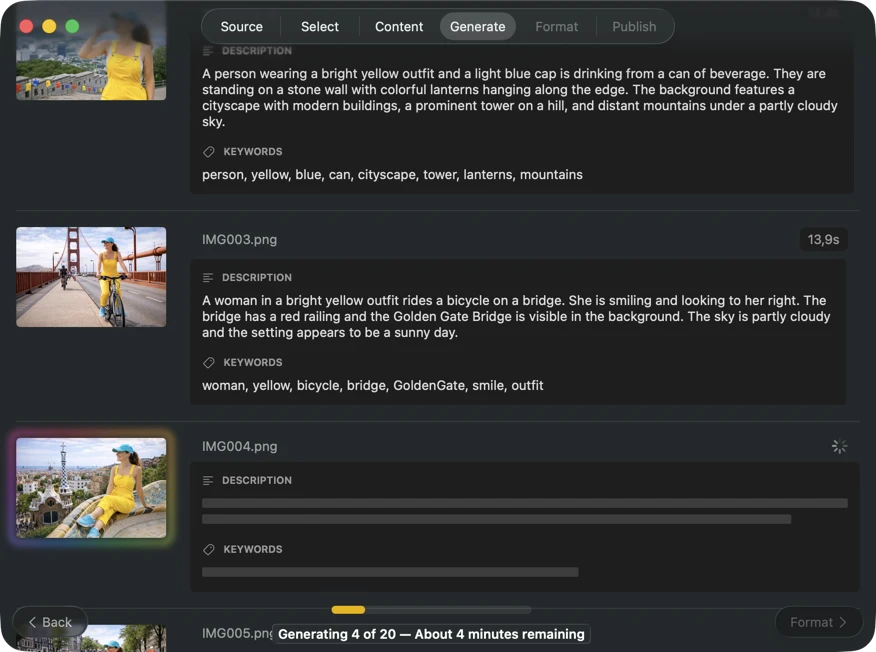
VisionTagger generated metadata for an image using local AI

Choose a model — or bring your own

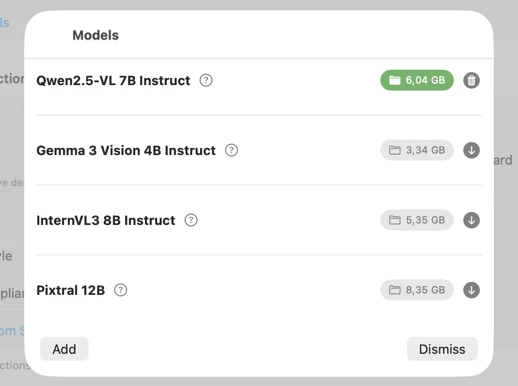
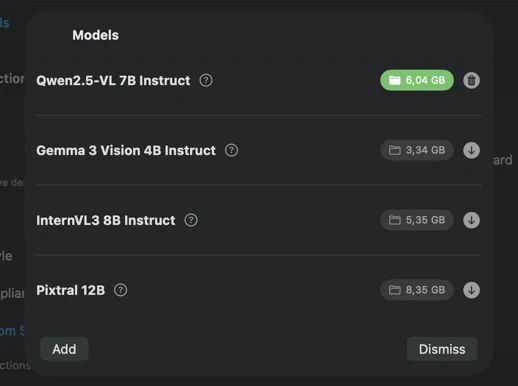
Download preconfigured vision models in-app, or link your own GGUF model and projector files. Choose the model that best fits your images and quality requirements, then fine-tune generation with adjustable parameters to get consistent, repeatable results. All processing runs locally on Apple Silicon (M1 or later), using your Mac's performance instead of a cloud service.

VisionTagger model selection interface

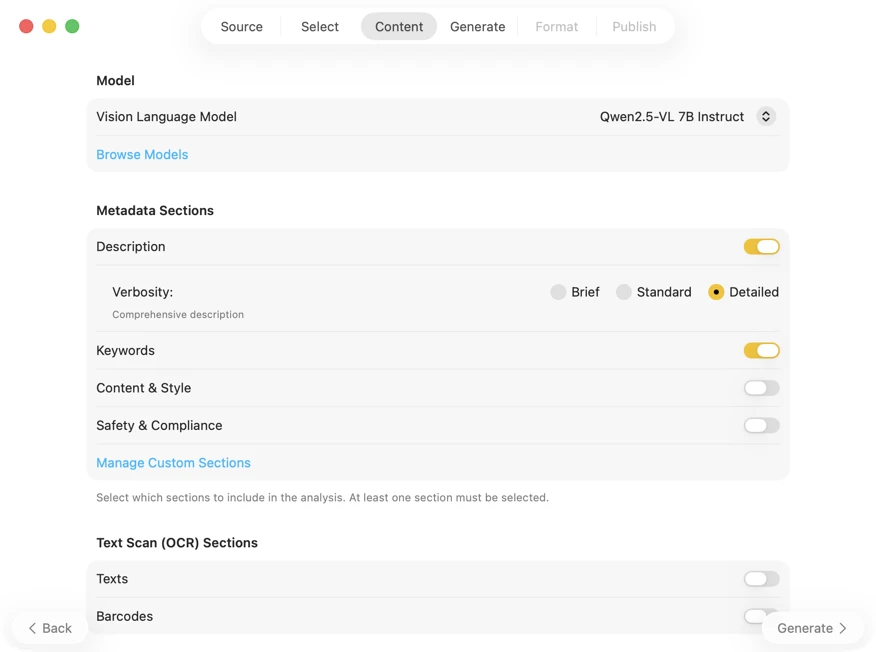
Define your own metadata schema

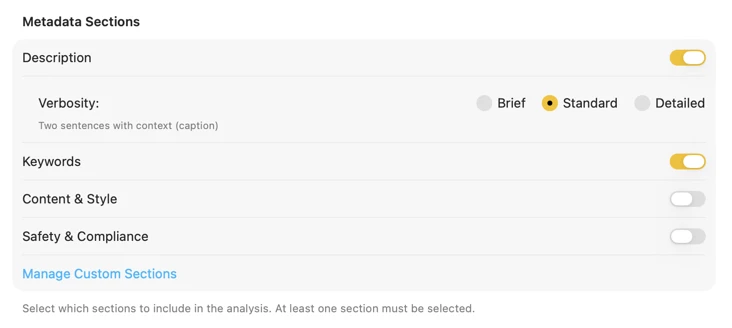
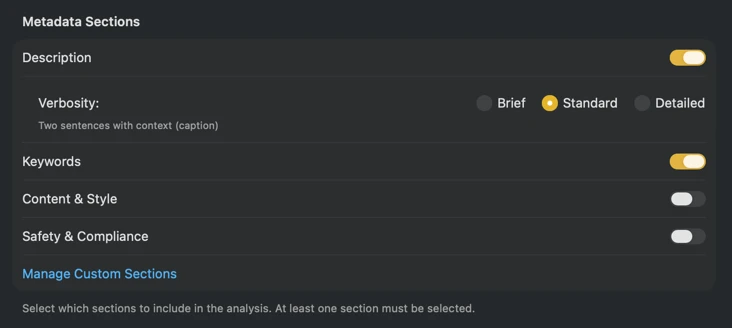
Generate only the metadata you actually need. Enable built-in sections such as Title, Description, Keywords, Content & Style, and Safety & Compliance — then extend them with custom sections and fields tailored to your workflow. For each field, choose a data type (Boolean, Text, or List of Texts) and write a prompt that instructs the model exactly what to extract. The result is structured metadata that matches your conventions and stays consistent across large batches.

VisionTagger content configuration showing customizable metadata sections and fields

Export metadata where you need it

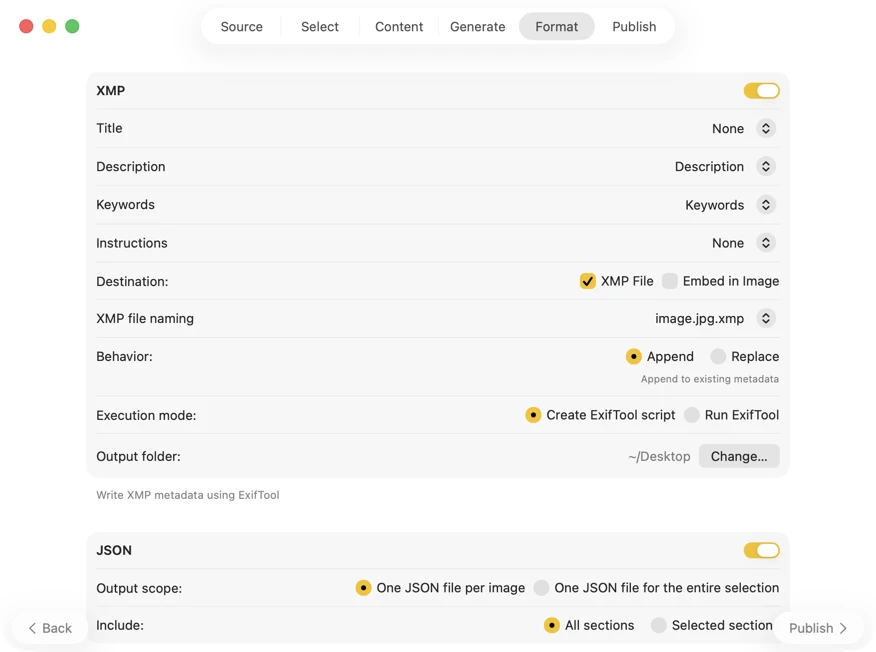
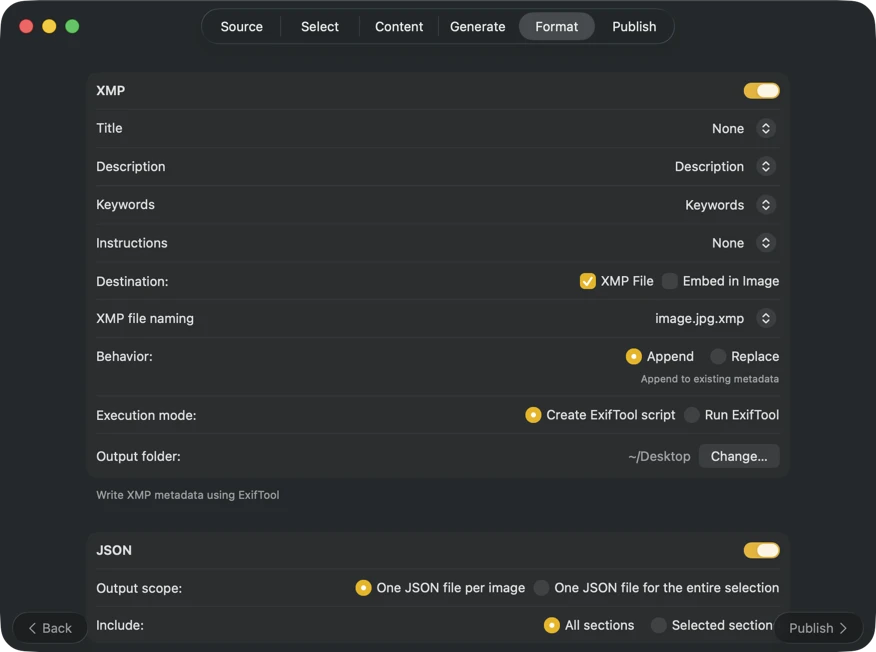
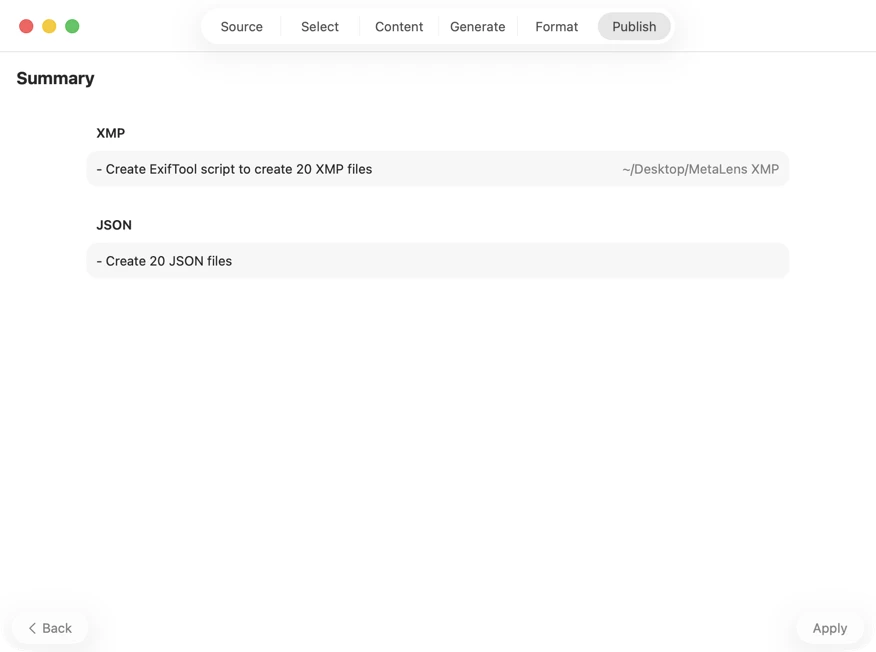
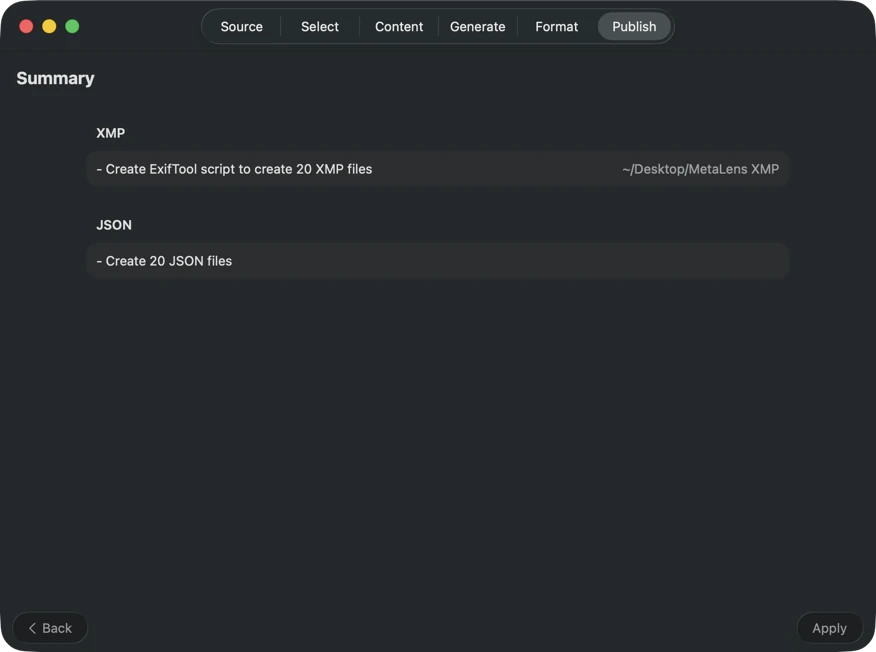
Publish metadata in the format that best fits your pipeline. For XMP sidecars and embedded metadata, VisionTagger integrates with ExifTool — an industry-standard, widely trusted utility. Your metadata will appear in apps like Adobe Lightroom, Bridge, Capture One, Photo Mechanic, and any other software that reads XMP. Write back to your Photos Library, export JSON, CSV or TXT per image, or generate a single file for an entire run. Add Finder tags for fast organization in macOS. Select multiple outputs at once and configure them together — so one generation pass can feed every destination you use.
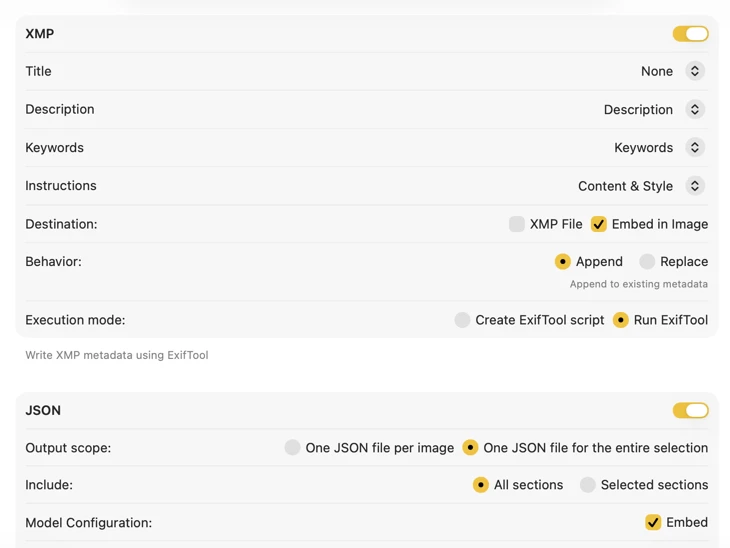
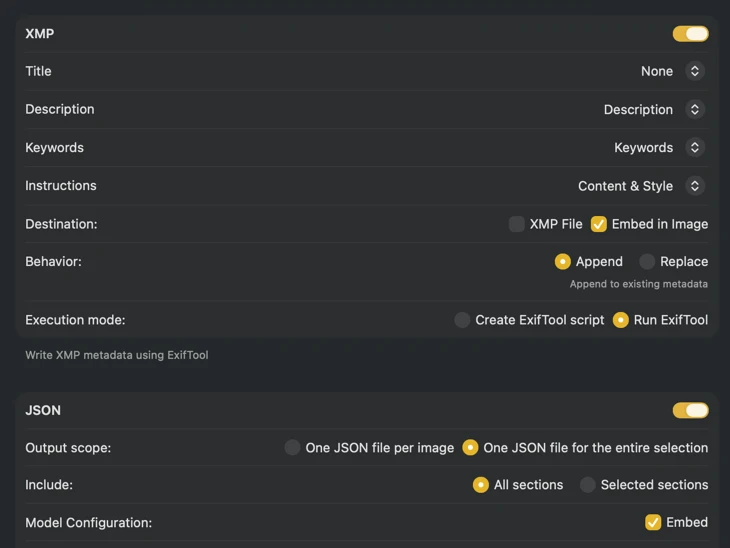
Example of VisionTagger publish configuration

Add context for smarter results

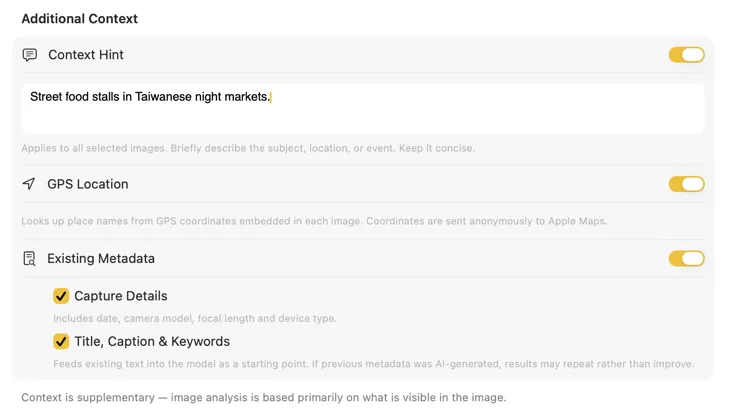
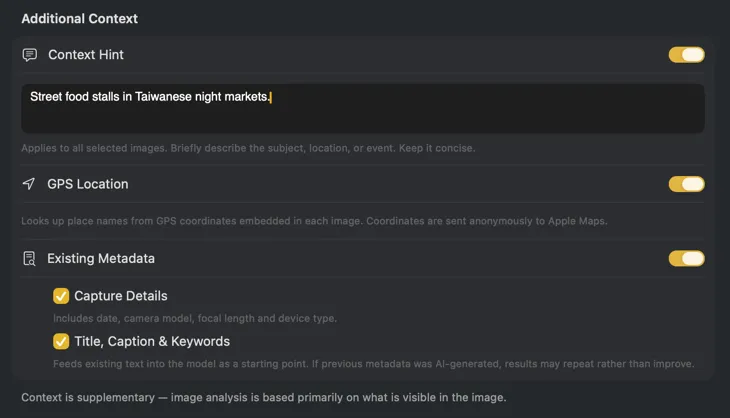
Give the model more to work with. Add a free-text Context Hint to describe your batch — like "product photos for a vintage furniture store" — enable GPS Location to look up place names from embedded coordinates via Apple Maps, or pass Existing Metadata such as capture details and editorial fields already in your files. Each source is optional, works independently, and feeds directly into the prompt for more accurate, location-aware results.

VisionTagger Additional Context panel showing context sources

Automate with Shortcuts

Run VisionTagger's full processing pipeline without opening the app. Two dedicated Shortcuts actions — Generate Image Metadata for files in Finder, and Generate Photo Metadata for your Photos Library — let you generate and export metadata headlessly. Use the app's current settings or supply a self-contained settings preset for reproducible results. The actions work everywhere Shortcuts does: the Shortcuts app, Finder Quick Actions, folder automations, the command line, and AppleScript.

VisionTagger Shortcuts integration showing automation actions

Use cases

System requirements

  • macOS Tahoe 26.0 or later

  • Apple Silicon required (M1 or later)

  • For optimal performance with larger models 16GB RAM or more is recommended

  • Model storage: plan for ~4–8 GB per model (downloaded locally)

From images to metadata — in six steps

Watch demo on YouTube

One-Time Purchase

€29.99
Launch offer €24.99

VAT included (except US & CA)

Free trial: 100 images, no time limit
Single payment. No recurring fees.
Single user. Multiple Macs.
Download Free Trial
Buy VisionTagger

Secure payment via FastSpring

VisionTagger FAQ

Which vision models are included?

VisionTagger includes four preconfigured vision models: Qwen2.5-VL 7B Instruct, Gemma 3 4B IT, InternVL3 8B Instruct, and Pixtral 12B. Smaller models generally run faster, while larger models may produce higher-detail output but require more memory, depending on your Mac and chosen settings. Use the trial to compare models and tweak parameters until the results match your workflow and preferred level of detail.

Can I use my own models?

Yes. If you have a GGUF-compatible vision model and its matching projector file (also GGUF), you can link them in VisionTagger and use them like the built-in options. You are responsible for ensuring your use of third-party models complies with their licenses and terms.

Does VisionTagger require an internet connection?

VisionTagger runs locally and does not upload your images or generated metadata. An internet connection is only needed to download models in-app and to check for and download app updates.

How does the free trial work?

The free trial lets you process up to 100 images at no cost, with no time limit. You can explore the full workflow—model selection, built-in sections, custom fields, and export options—before purchasing.

Which image formats and sources are supported?

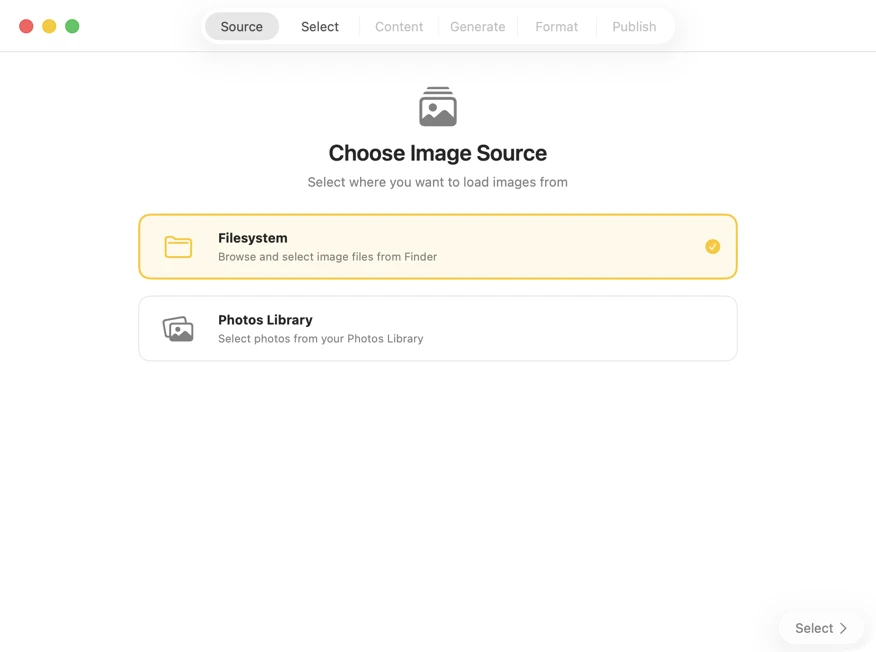
VisionTagger supports common image formats such as JPEG, PNG, TIFF, HEIC, and WebP, as well as various RAW formats including DNG. You can select images from folders on your Mac or directly from your Photos Library.

Can I customize the metadata fields?

Yes. In addition to built-in sections (Title, Description, Keywords, Content & Style, Safety & Compliance), you can create custom sections and add your own fields. Each field supports a data type (Boolean, Text, or List of Texts) and its own prompt, so you can tailor exactly what the model extracts.

Can I adjust the description verbosity?

Yes. You can choose between three levels: Brief for a single concise sentence suitable for alt text, Standard for two sentences with context ideal for captions, or Detailed for a comprehensive description.

Can I control which keywords are generated?

Yes. You can set a keyword count range so the model generates a consistent number of keywords per image. You can also define keywords to always include at the start or end of the list, and specify keywords to exclude. After generation, you can manually reorder, edit, add, or delete keywords for each individual image before exporting.

What outputs can VisionTagger create?

VisionTagger can export JSON, CSV or TXT per image, or a single JSON/CSV/TXT file for an entire batch. It can also apply Finder tags. For XMP sidecars and embedding metadata into image files, VisionTagger integrates with ExifTool (installed separately).

Do I need to install ExifTool?

ExifTool is only required for XMP sidecars and embedding metadata into image files. If you only export JSON/CSV/TXT or apply Finder tags, you do not need ExifTool.

Can VisionTagger write back to my Photos Library?

Yes. VisionTagger can write metadata back to your Photos Library when you choose that output option. You will always see a publish summary before anything is written.

Can I tune the model parameters?

Yes. In Settings you can adjust generation parameters such as temperature, max tokens, context length, top-P, and top-K using sliders. This helps you balance creativity versus consistency and control output length and detail.

How fast is it, and what Mac do I need?

VisionTagger requires Apple Silicon (M1 or later) and runs on macOS Tahoe 26.0 or later. Speed depends on your Mac, the selected model, image resolution, and your chosen metadata fields. Smaller models typically run faster; larger models can produce higher-quality results but may require more RAM.

How much disk space do models use?

Model downloads are stored locally. Plan for roughly 4–8 GB per model (varies by model).

Will VisionTagger overwrite existing files or metadata?

VisionTagger shows a publish summary before writing any outputs and warns you if existing files may be overwritten. You can review the actions and confirm before anything is saved.

Can I automate VisionTagger?

Yes. VisionTagger integrates with Apple Shortcuts through two actions: Generate Image Metadata (for files in Finder) and Generate Photo Metadata (for your Photos Library). Both run the full pipeline headlessly and export results to your configured destinations. You can use them in the Shortcuts app, Finder Quick Actions, folder automations, the command line, and AppleScript. Optionally supply a settings preset exported from the app for reproducible automation.

Does the GPS Location feature send my data anywhere?

GPS coordinates embedded in your images are sent anonymously to Apple Maps to look up place names. Only the coordinates are sent — Apple does not collect personal data associated with your Maps usage. The GPS Location feature is disabled by default.

Does VisionTagger collect any usage data or analytics?

No. VisionTagger does not include analytics or telemetry, and it does not upload your data. Licensing activation and update checks involve network requests as needed for those functions.