

Generative art, made to plot.
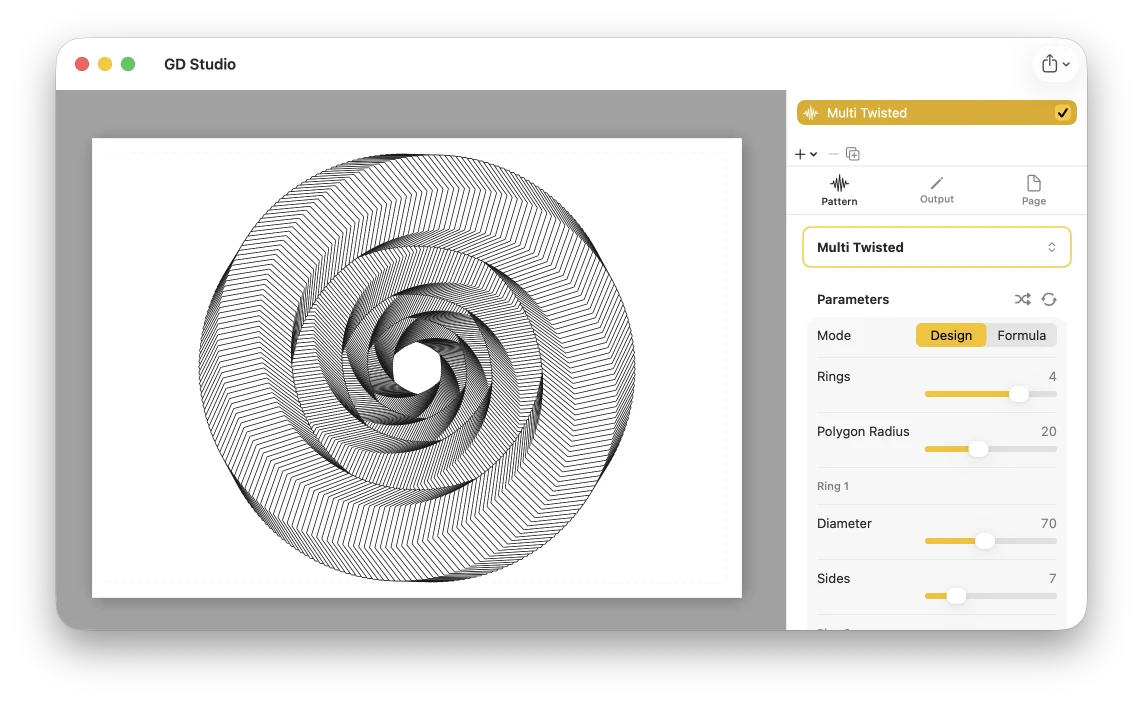
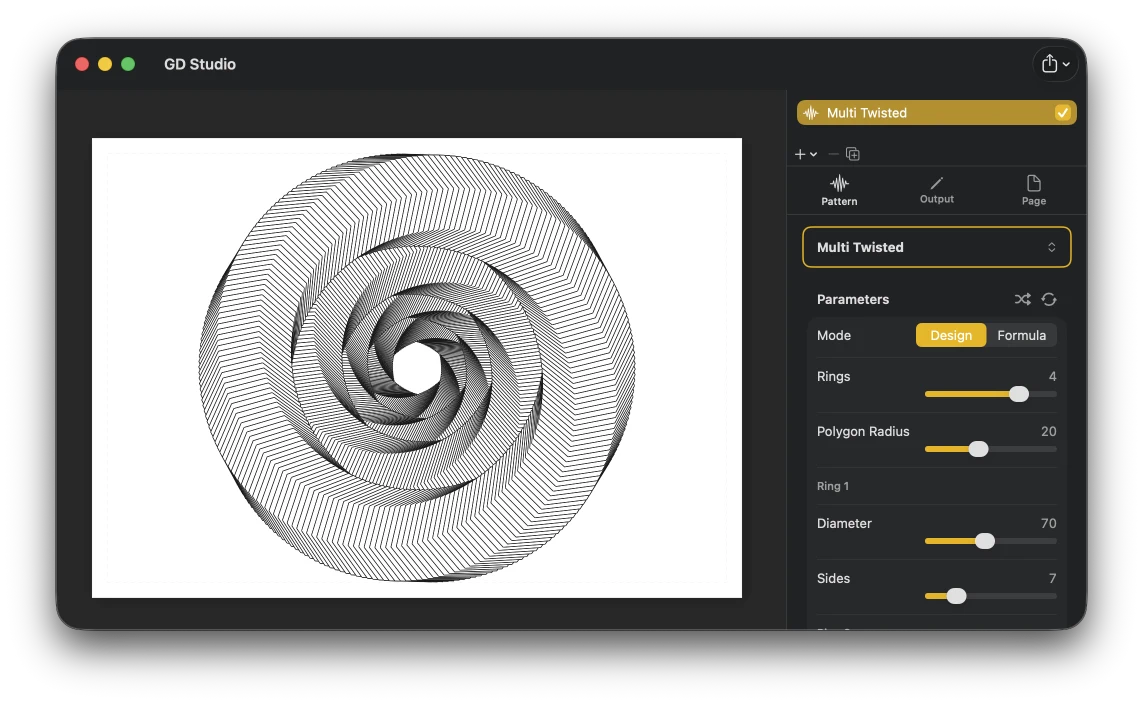
GD Studio lets you design generative artwork for pen plotters. Pick a pattern, shape it with live controls, add text or SVG elements, and export a plotter-ready file.
Requires macOS 15 or later
Who is GD Studio for?
GD Studio — short for Generative Drawing Studio — turns mathematical patterns into designs your pen plotter can draw, without writing a line of code. If you own a plotter, or you're simply drawn to the look of machine-drawn line art, it's built for you.
-
Generative artists and creative coders — explore parametric patterns visually, with live feedback, instead of recompiling a sketch to see a change.
-
Designers and makers — produce line-art posters, cards, logos, and lettering as clean vector strokes.
-
Educators and math enthusiasts — see curves, tilings, L-systems, and packings come to life and reshape as you change a single parameter.
-
Plotter-curious newcomers — start from a curated preset and tweak; no setup, no scripting, just continuous strokes that are ready to draw.
Dozens of patterns, endless variations
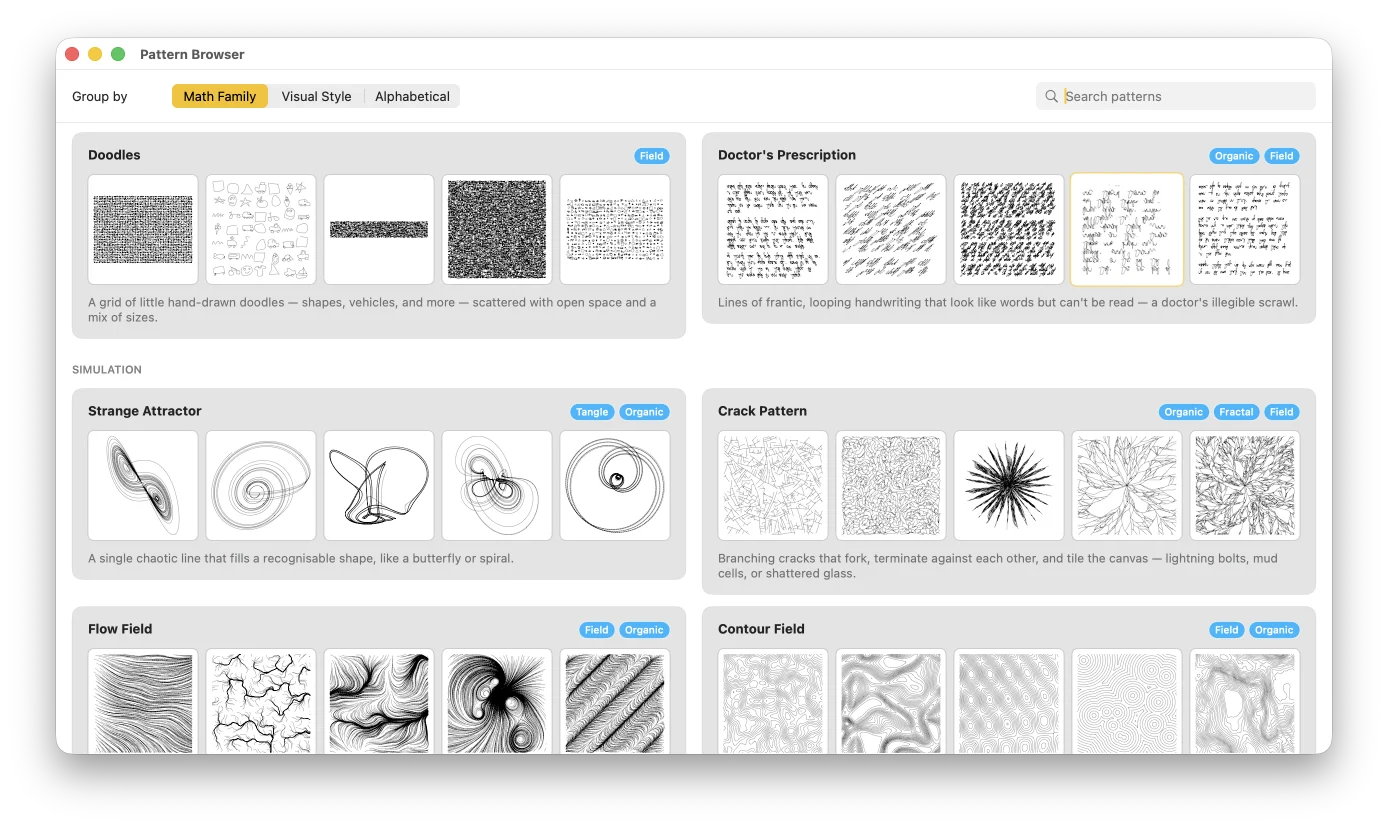
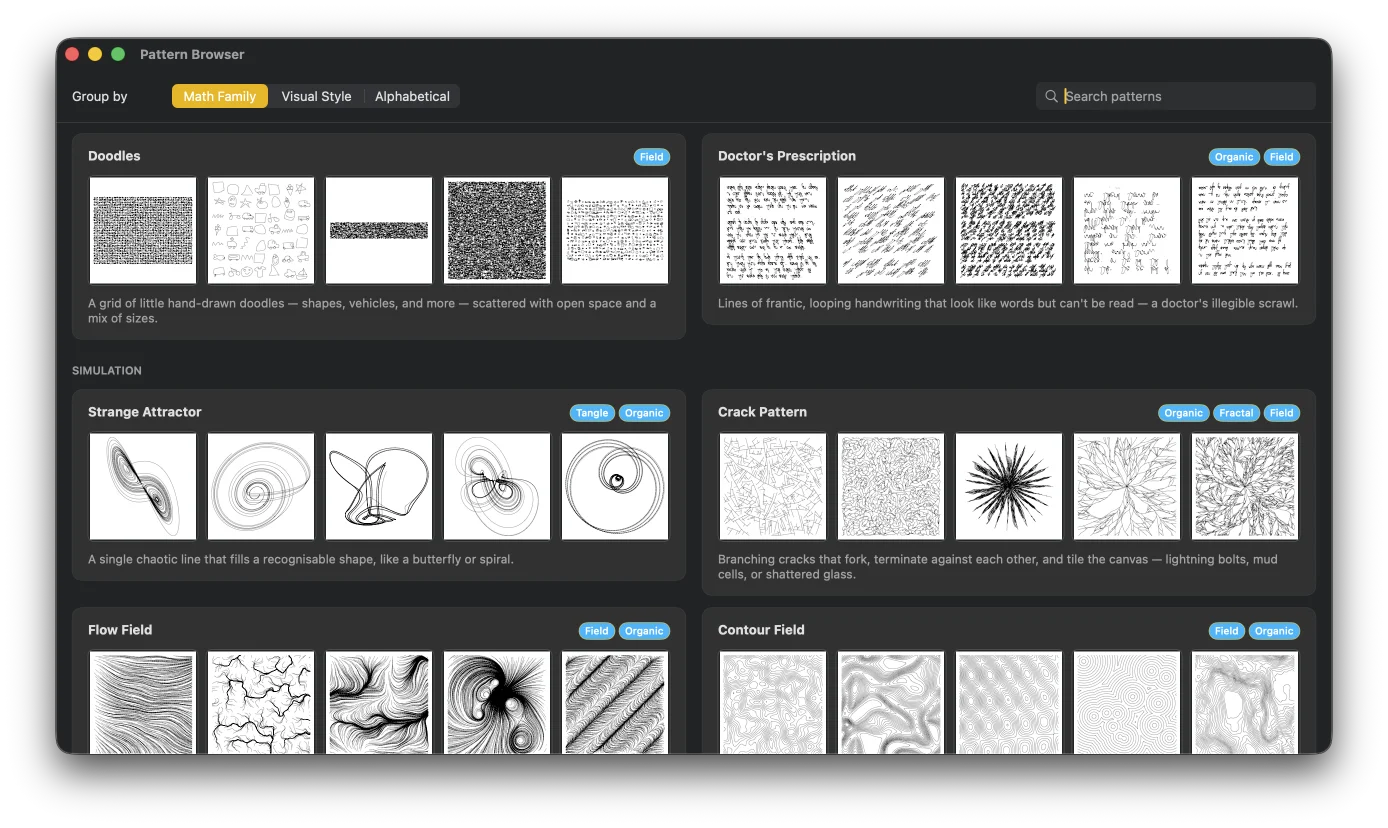
Explore 50 patterns across 8 families, from classic curves like Trochoids and Harmonographs to tilings, packings, generative systems, mazes, flow fields, and differential growth. Start from curated presets, then make each design your own: adjust its parameters, change how it is drawn, apply stroke, fill, line-style, and repeat modifiers, split it across colors, or combine multiple patterns in layered compositions. No pattern is limited to a single image. Each one is a flexible system with effectively endless variations. And because every design is built from continuous strokes, the canvas gives you a precise preview of the pen’s path: what you see is what the pen draws.
Layers, pens, and multi-pen plotting
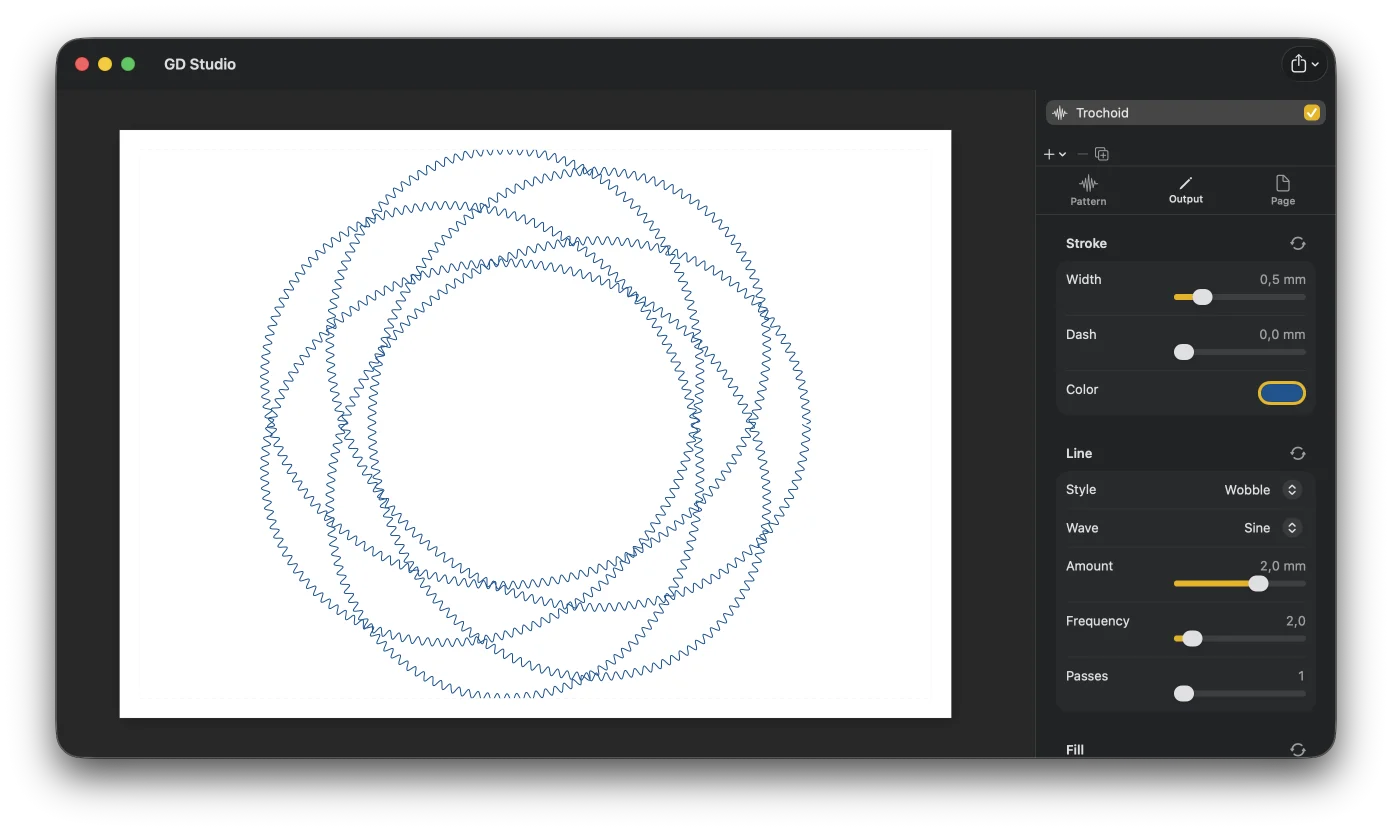
Build each drawing as a stack of layers, with independent control over pen color, stroke width, dash, transform, and render style. Restyle any line with wobble, hatch, stipple, nested outlines, and more using Line, Fill, and Repeat modifiers. Assign each pen to its own layer, or split a single pattern across several pens by path length, tile orientation, spiral arm, contour level, and other pattern-specific properties. Each layer exports as its own labeled SVG group, making it easy for plotter tools to guide pen changes between groups.

More than patterns: text, SVG, and calibration layers
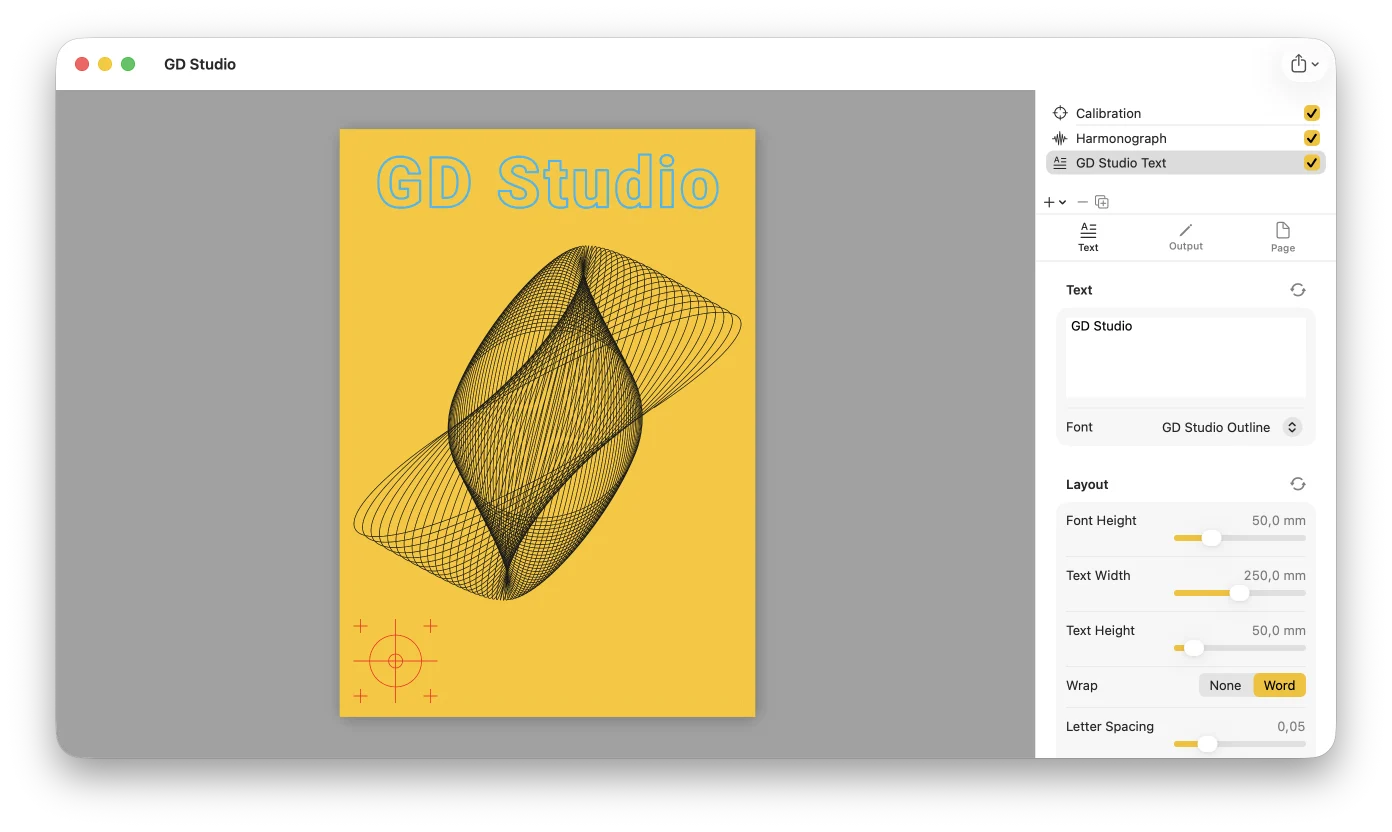
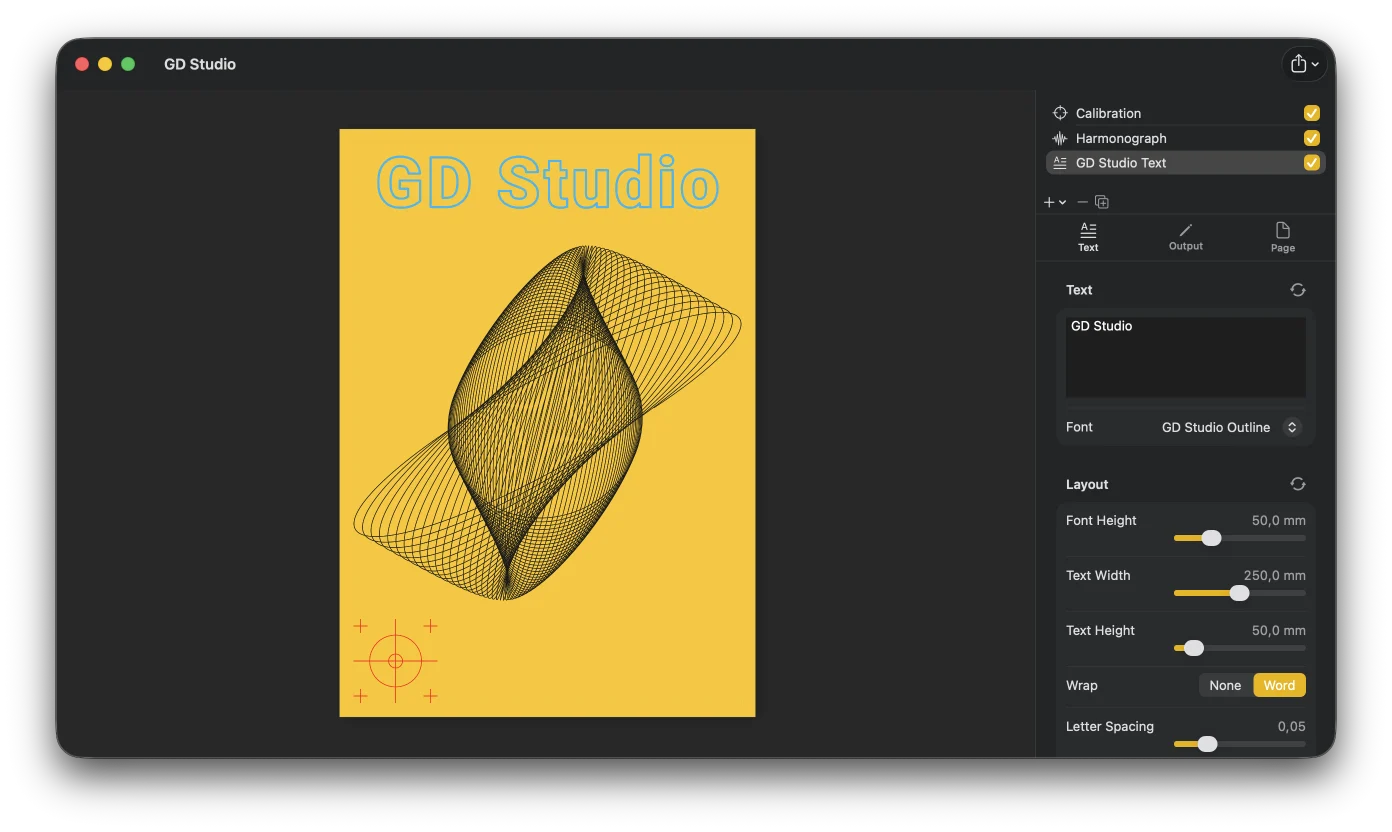
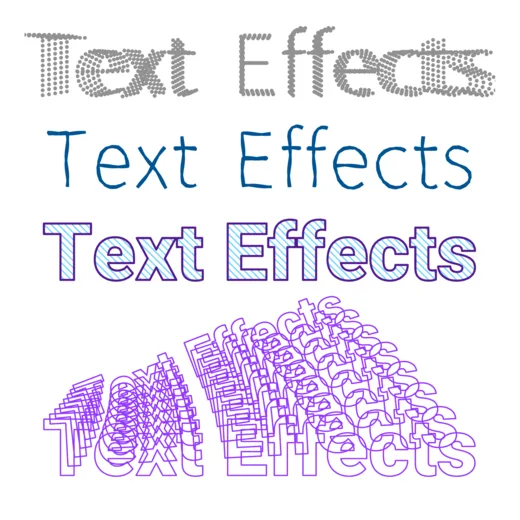
A layer doesn't have to be a pattern. Add text rendered as real plotter strokes (single-stroke and outline fonts, plus your own custom SVG fonts), import an SVG file to bring existing line art into your design, or drop in a calibration layer — a crosshair for pen registration. Imported SVG and text become regular layers: give them any pen, restyle their lines with the same Line, Fill, and Repeat options, mask them, and transform them like anything else.
Export — or plot directly with Plotter Hub
Export SVG (Inkscape / axicli layer-group convention), PDF, or print directly — each pen layer is written as its own labeled group, ready for any SVG-capable plotter workflow. Or skip the file step entirely and plot straight from GD Studio with Plotter Hub: it turns a Raspberry Pi into a networked plot server for your AxiDraw-compatible plotter, optimizes the SVG before plotting, and automatically pauses between layers so you can swap pens for each color.


How it works
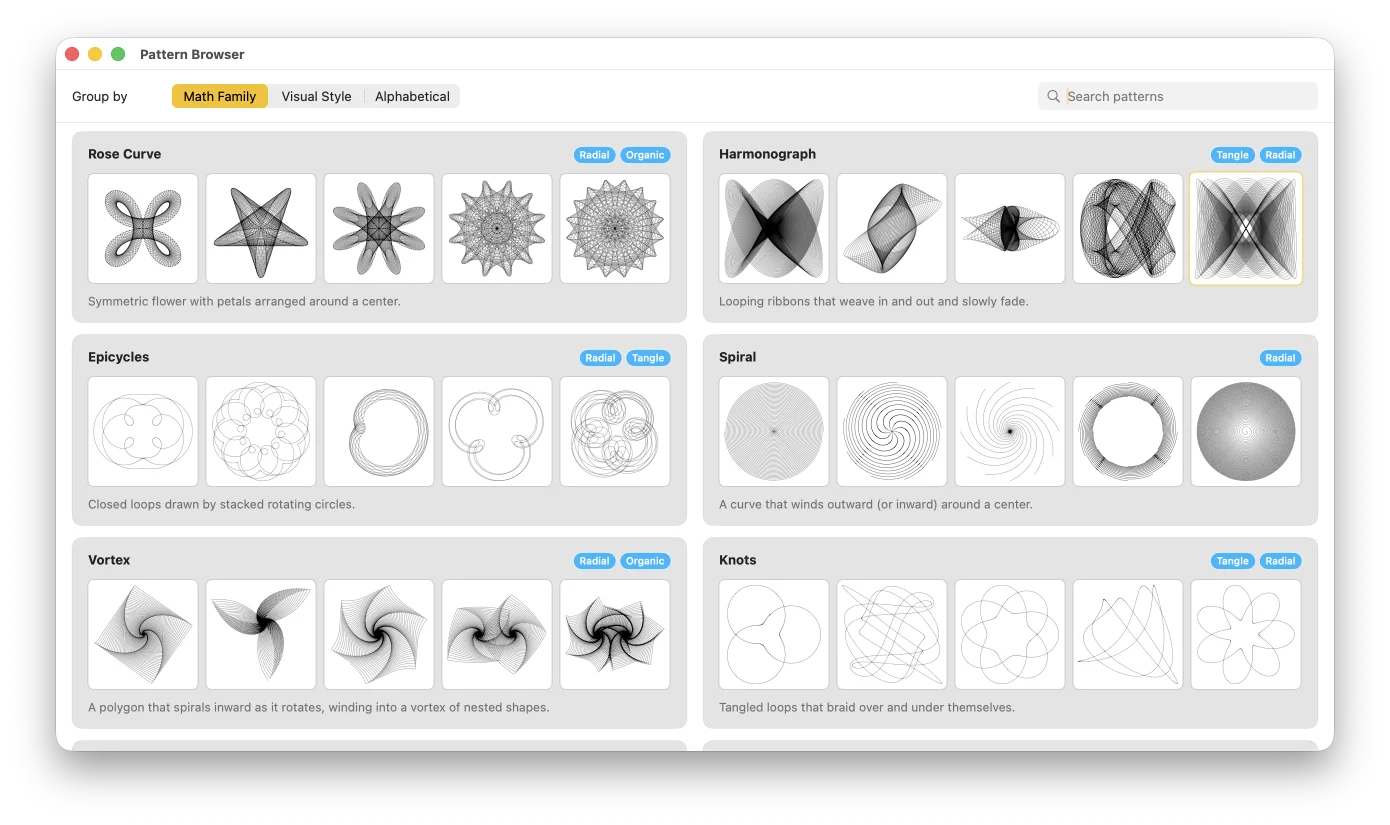
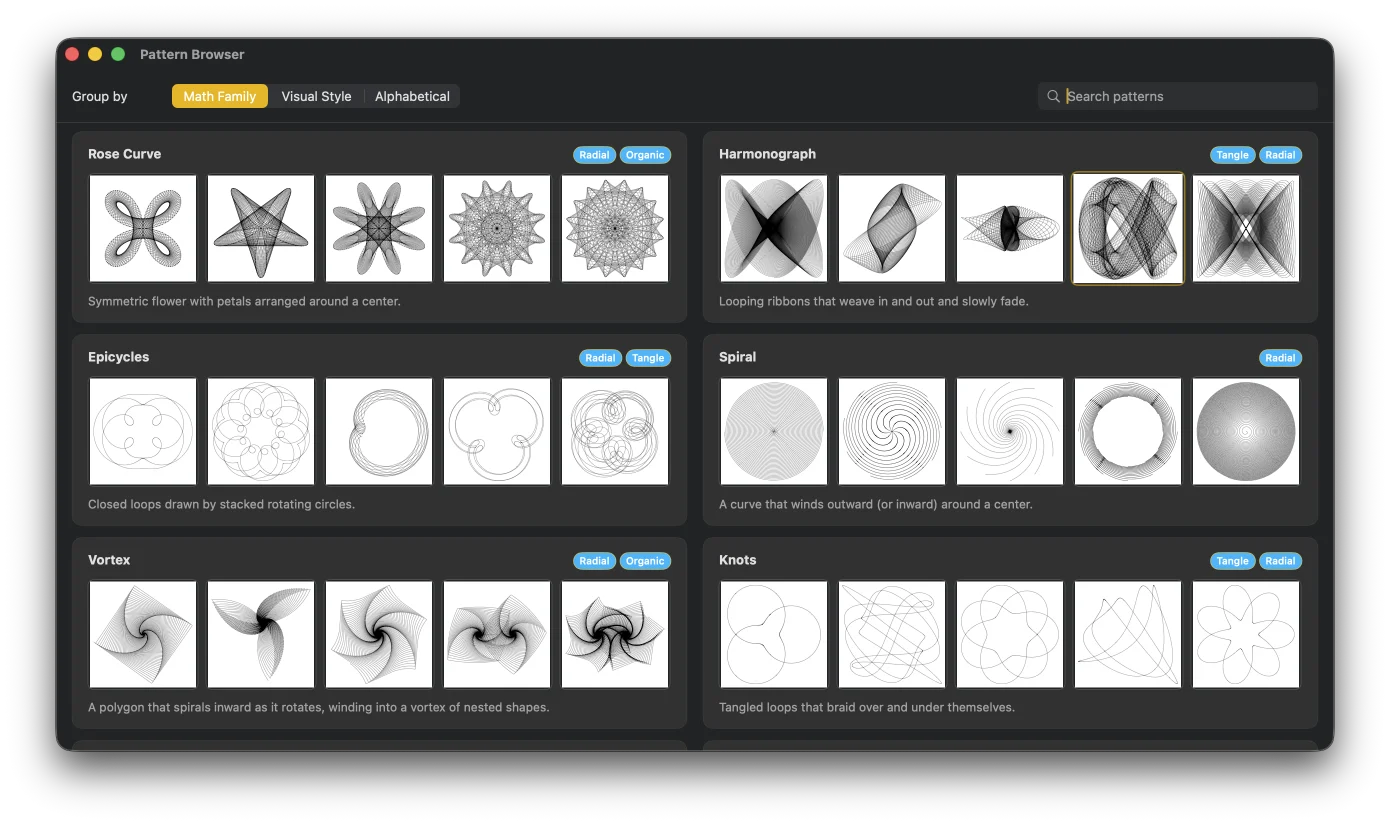
Open the welcome window and choose from the Pattern Browser, or start with your most recently used pattern.
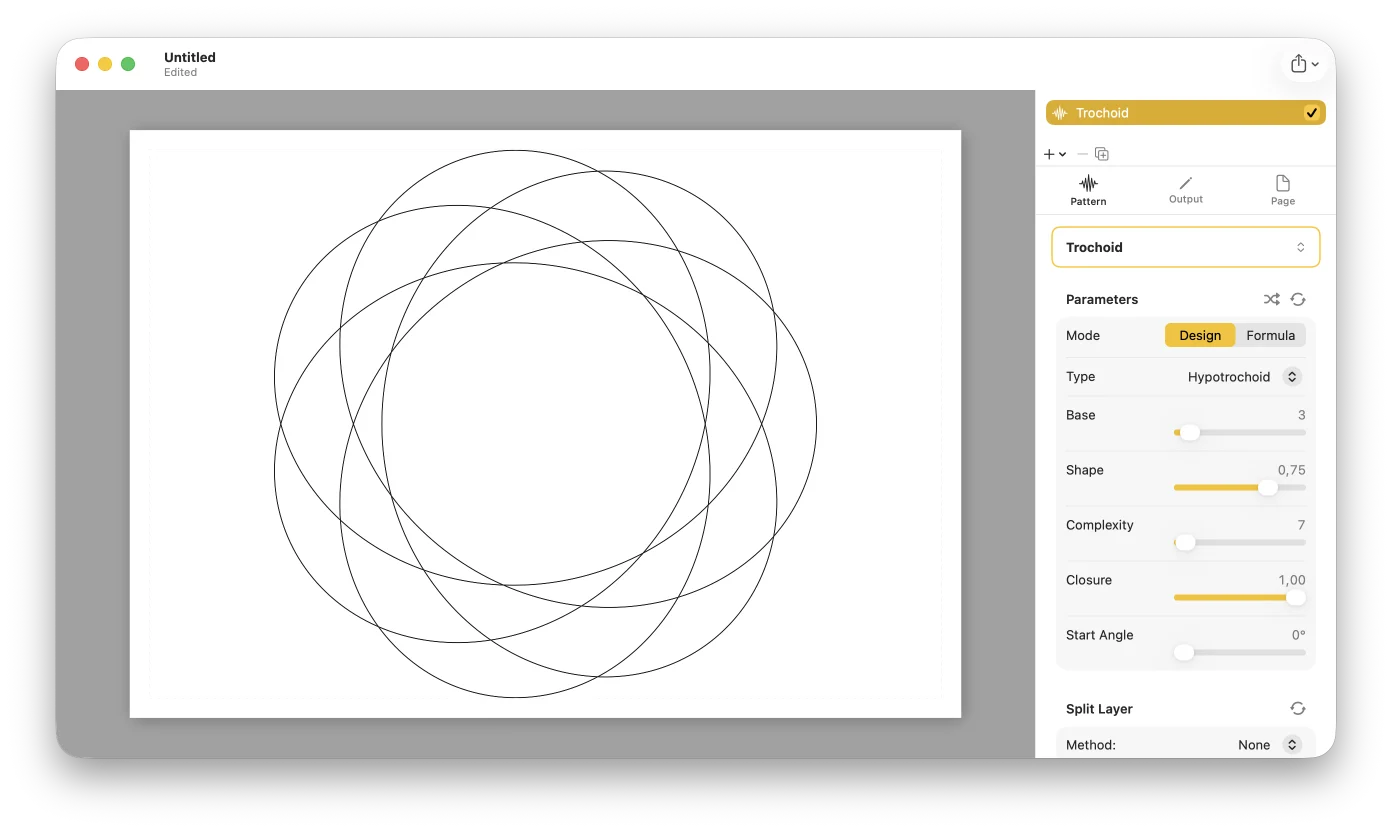
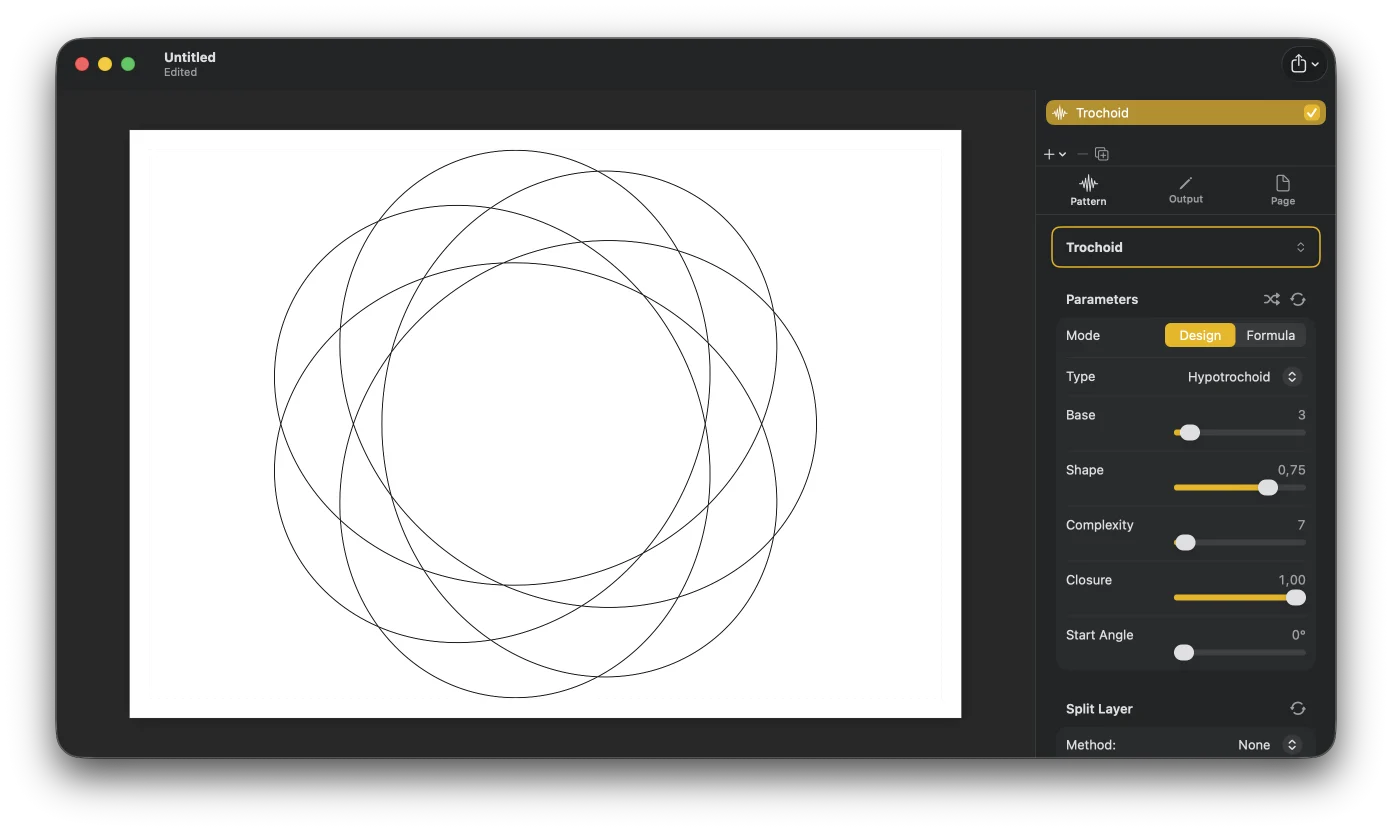
Adjust parameters in the Inspector and watch the canvas redraw instantly. Switch between Design and Formula mode for as much control as you want.
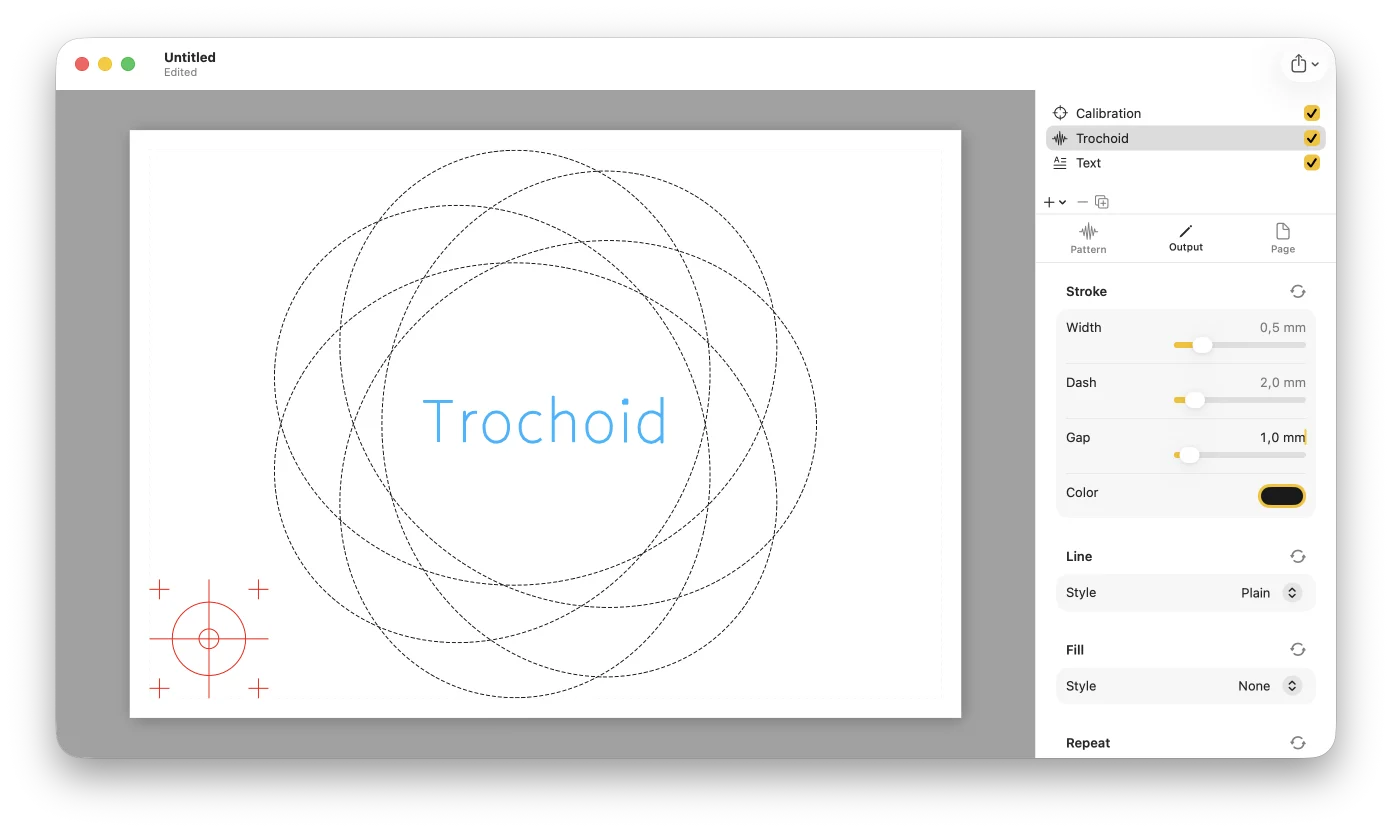
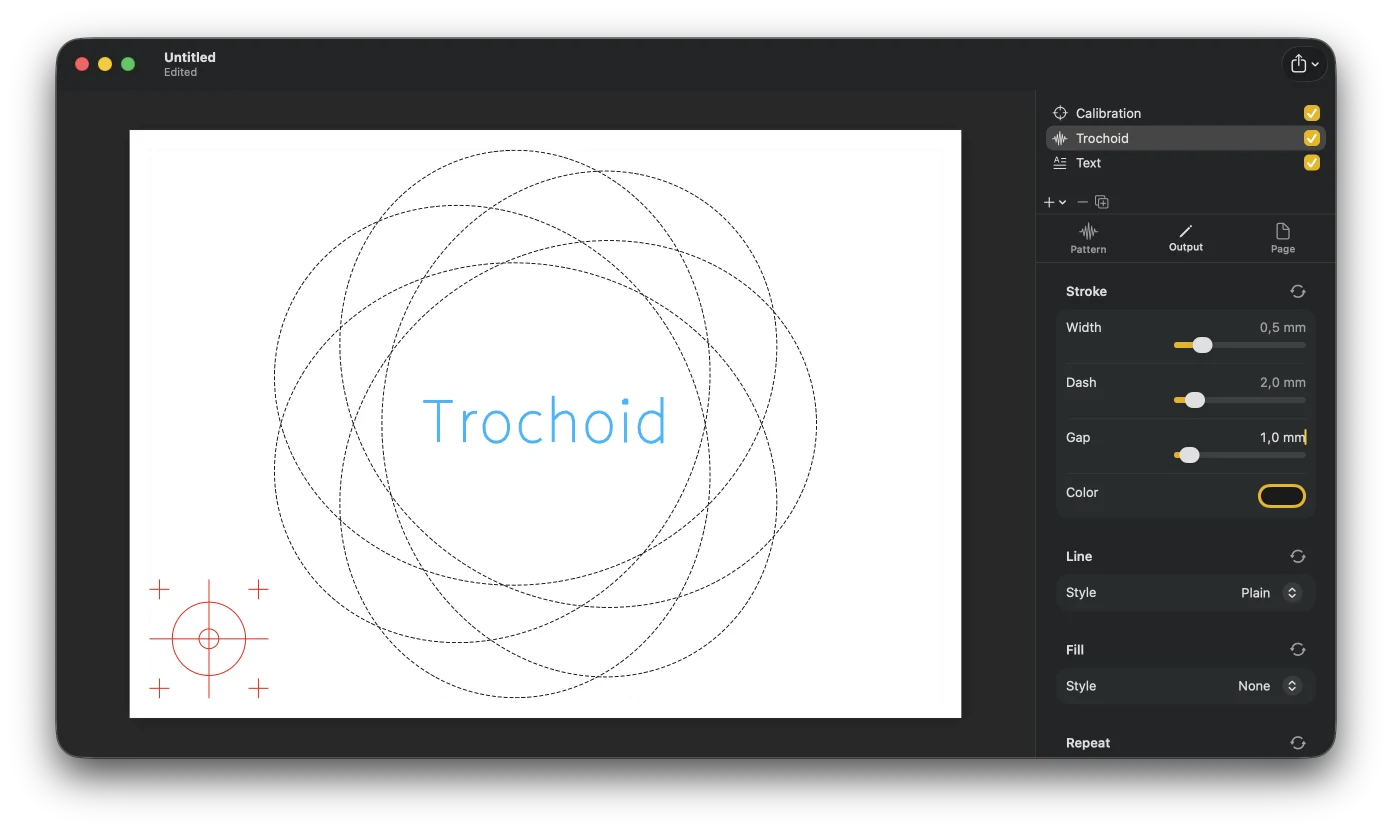
Add pattern, text, SVG, or calibration layers. Give each its own pen and render style; reorder, hide, and duplicate freely.
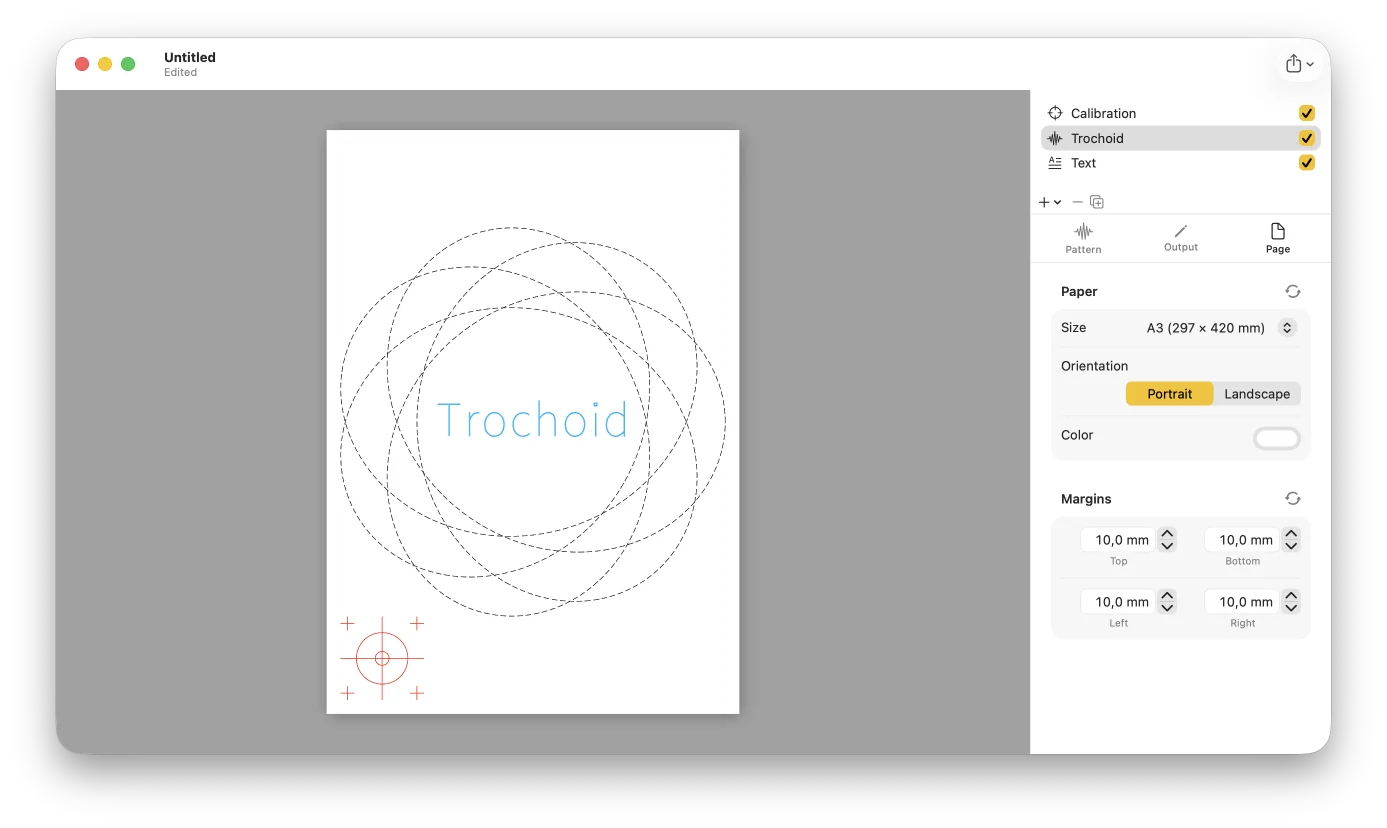
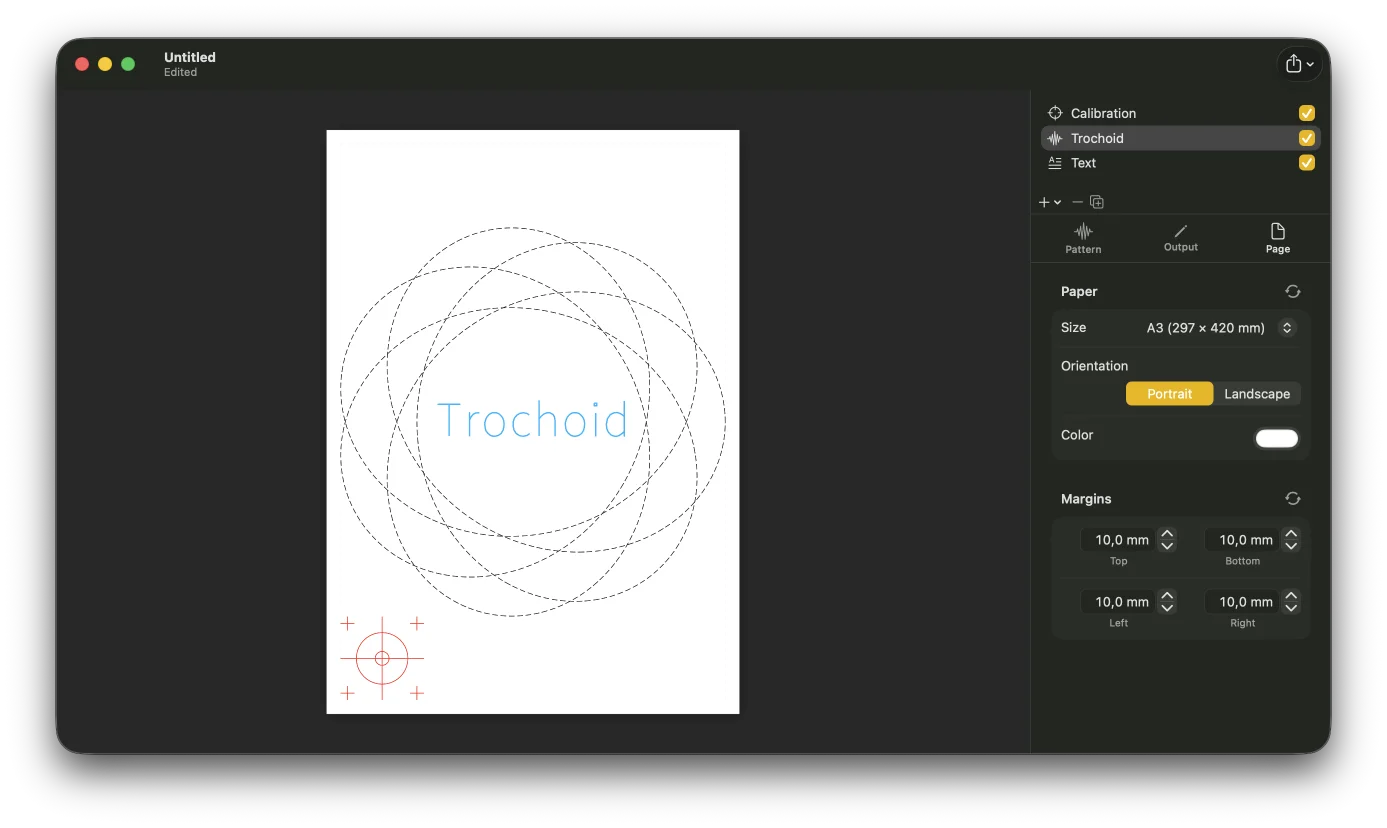
Choose paper size, orientation, and margins so the drawing fits your plotter bed.
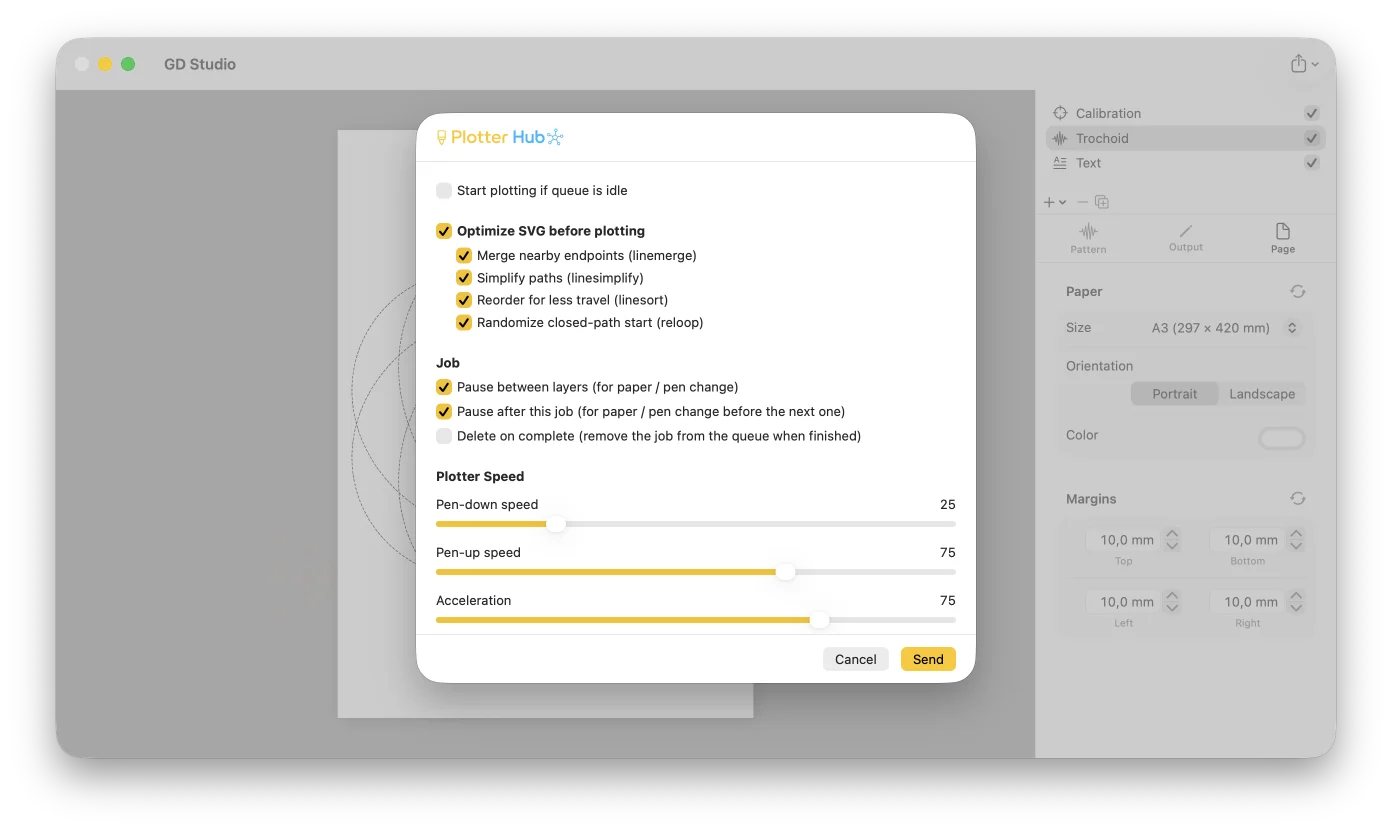
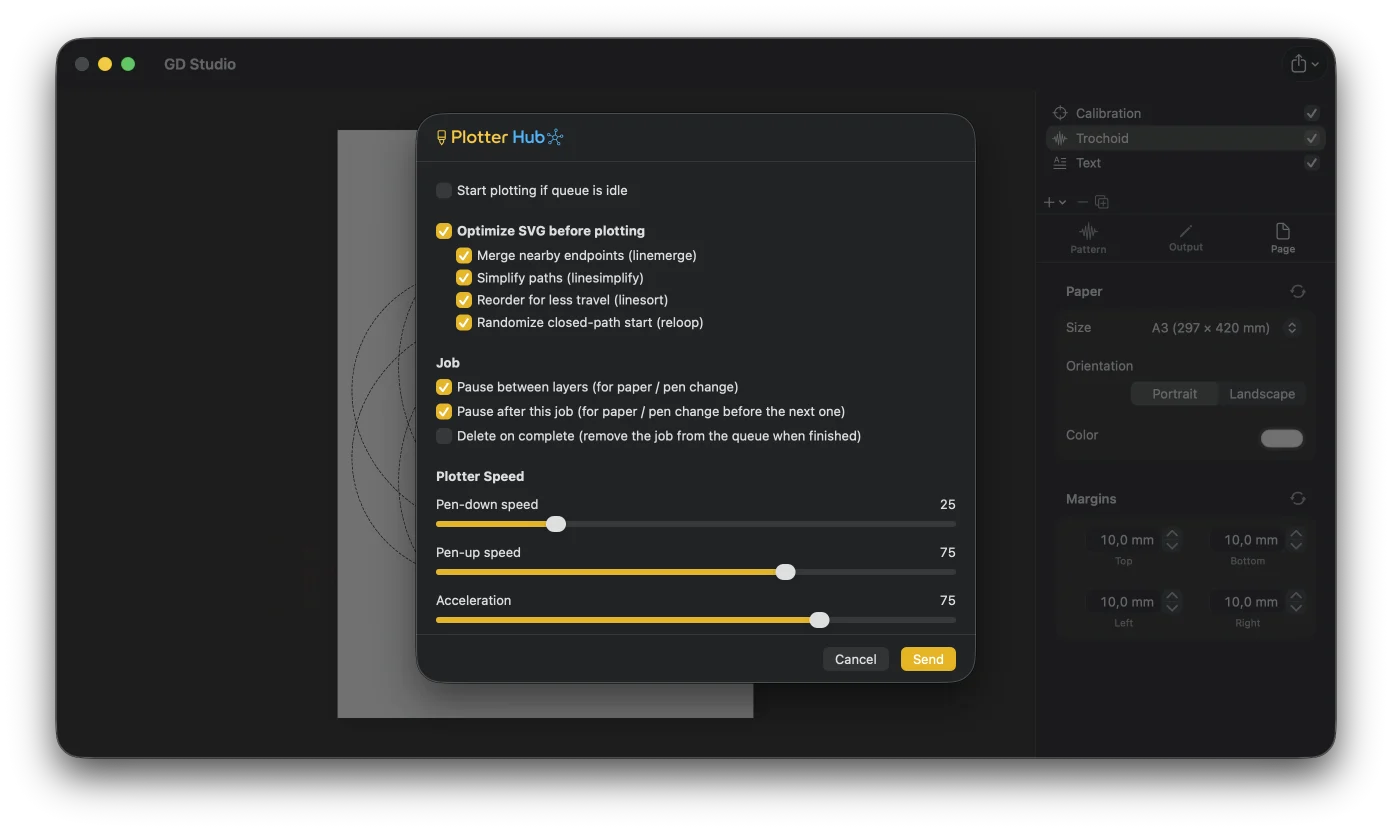
Save an SVG (one group per pen), a PDF, print, or send it to Plotter Hub. Load it in your plotter software and draw.
Made with GD Studio
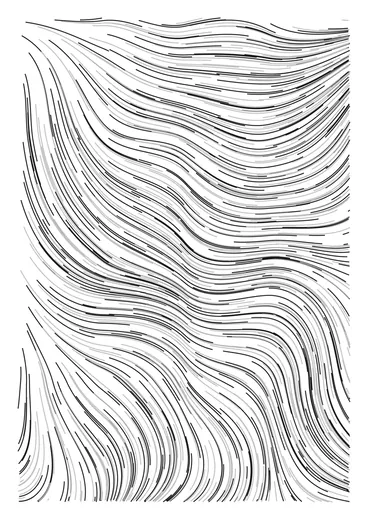
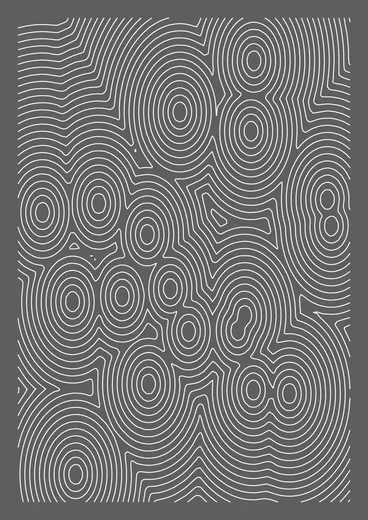
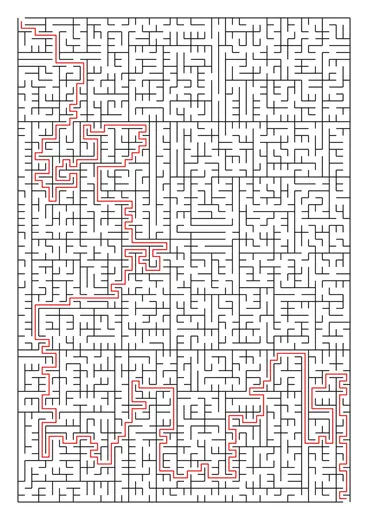
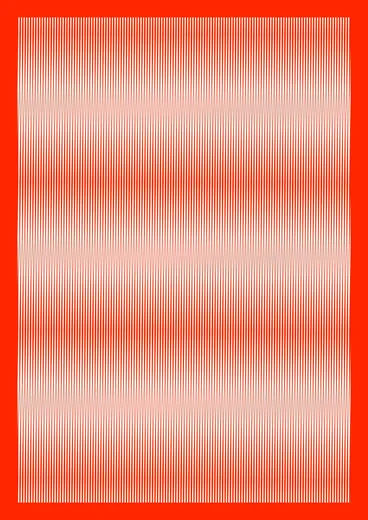
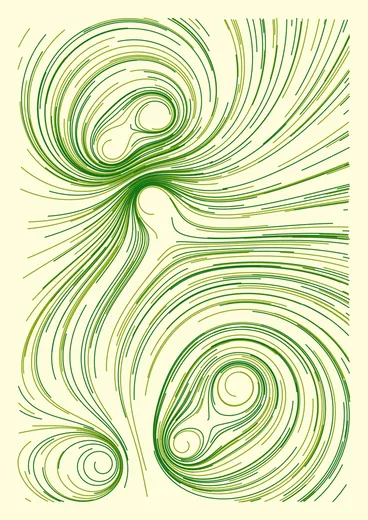
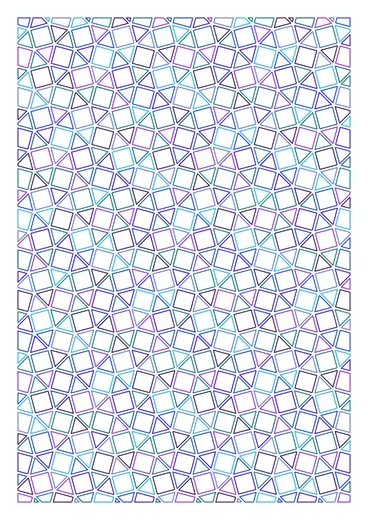
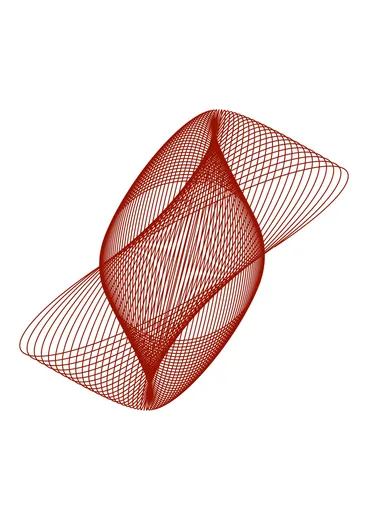
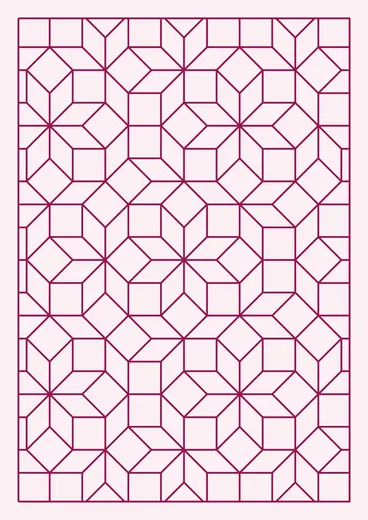
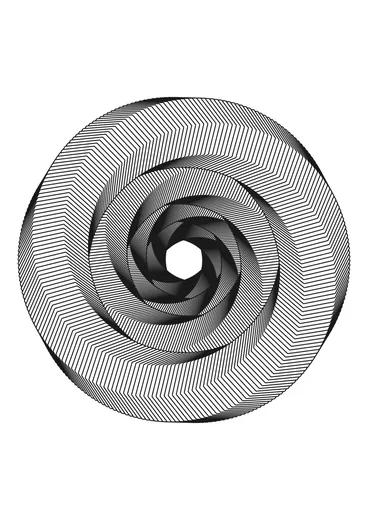
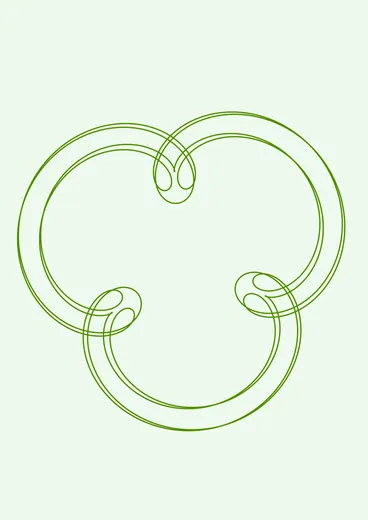
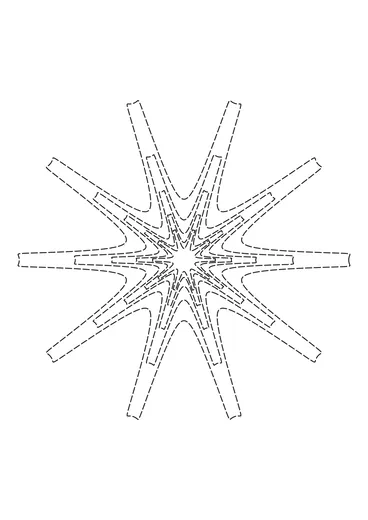
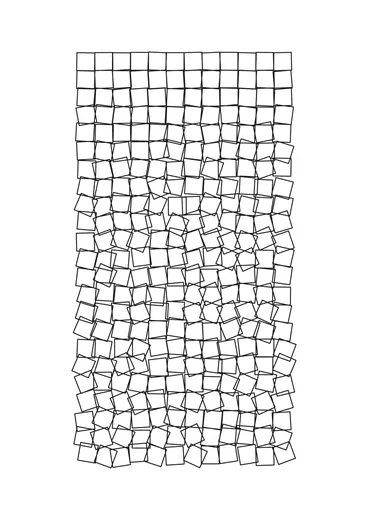
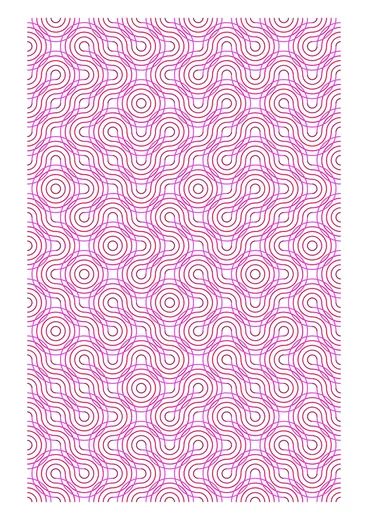
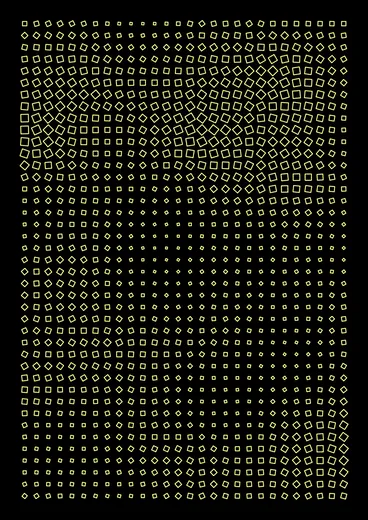
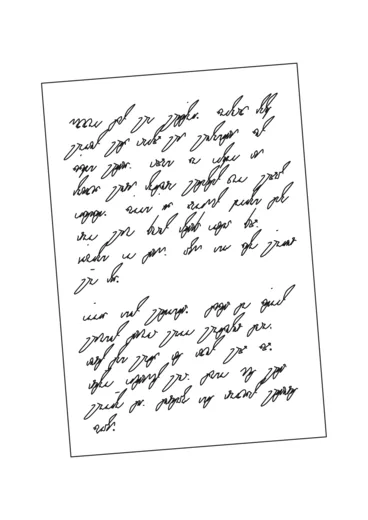
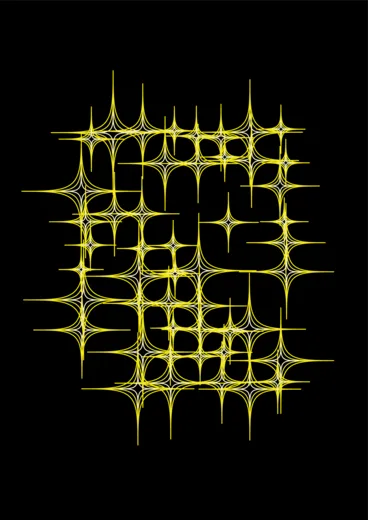
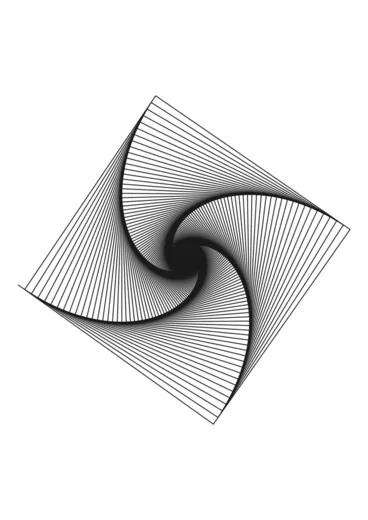
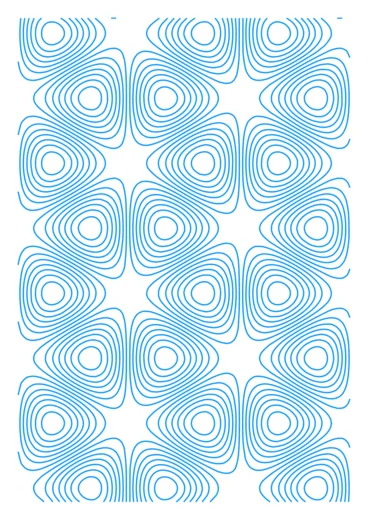
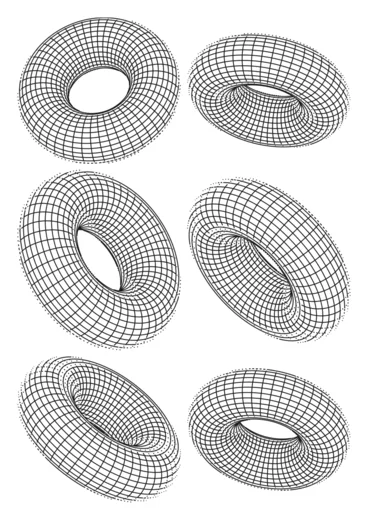
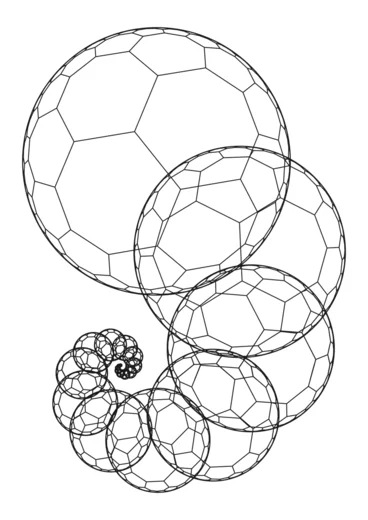
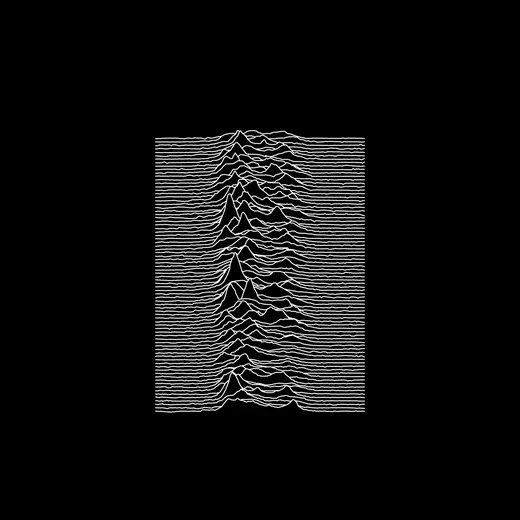
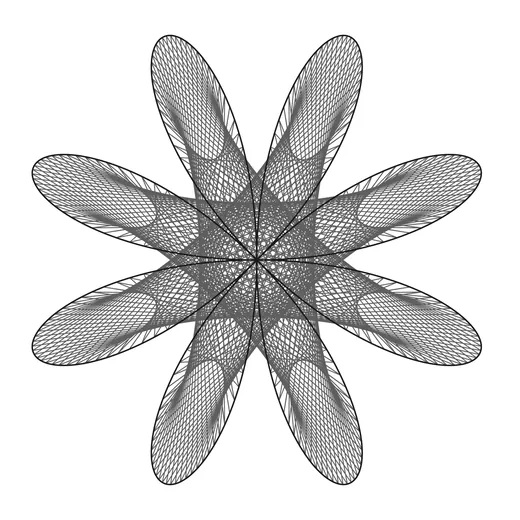
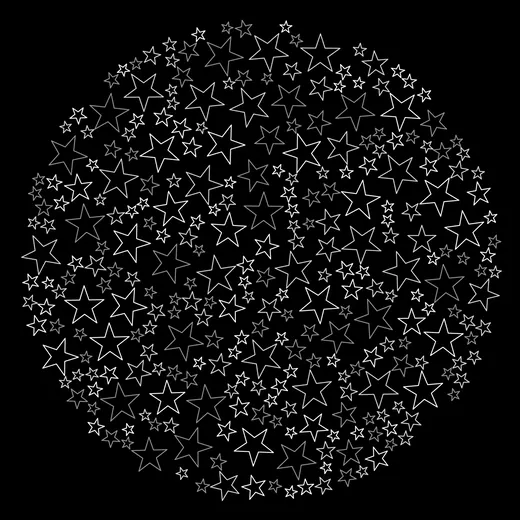
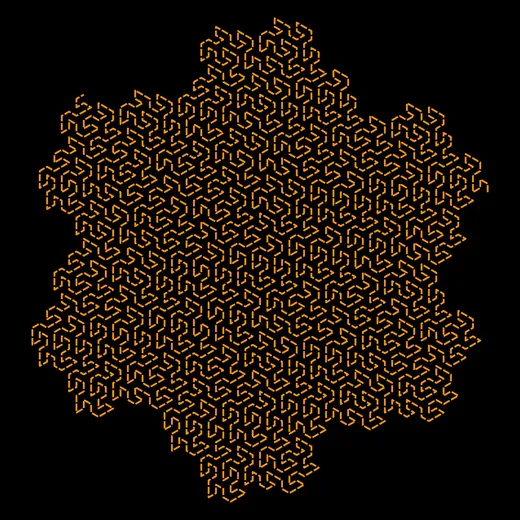
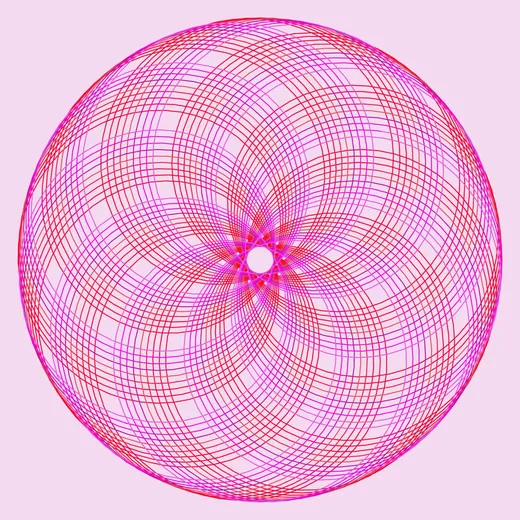
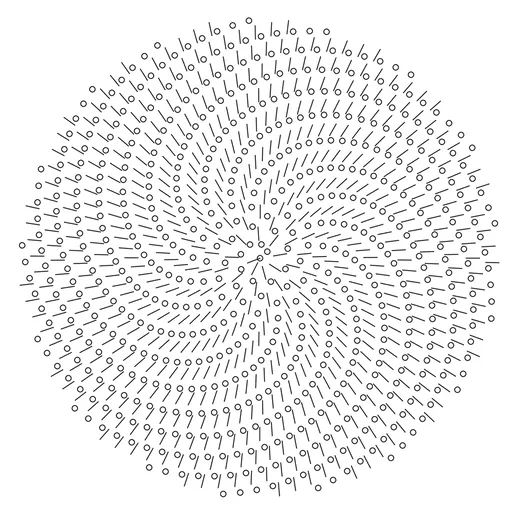
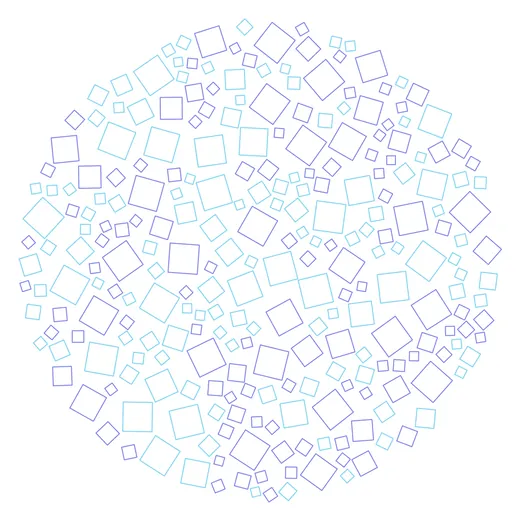
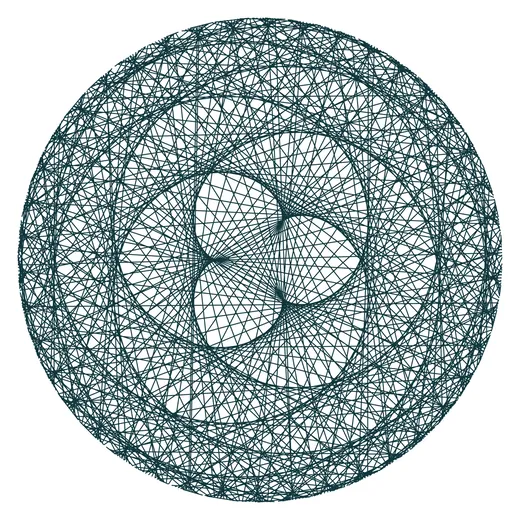
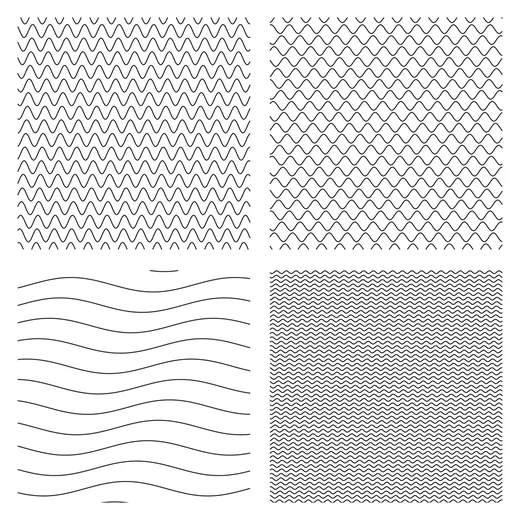
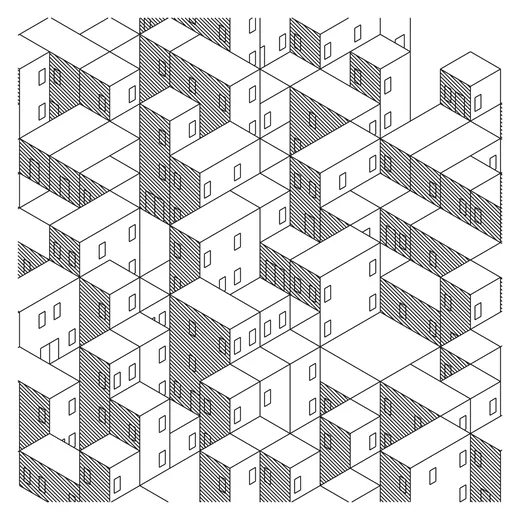
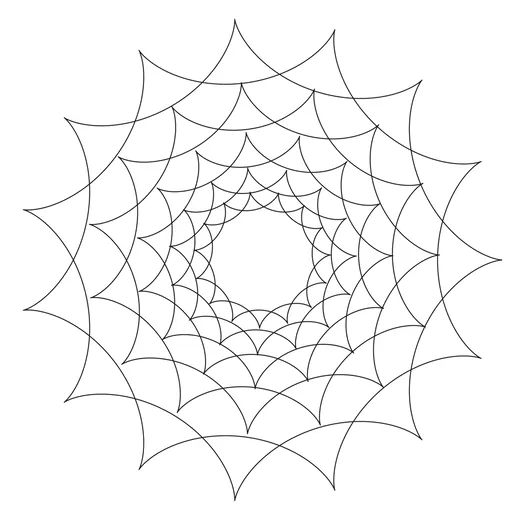
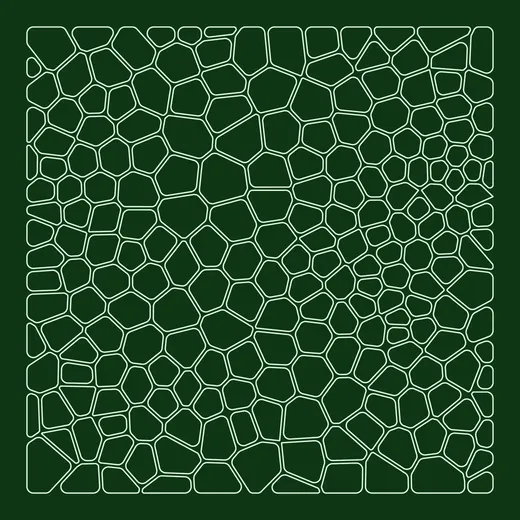
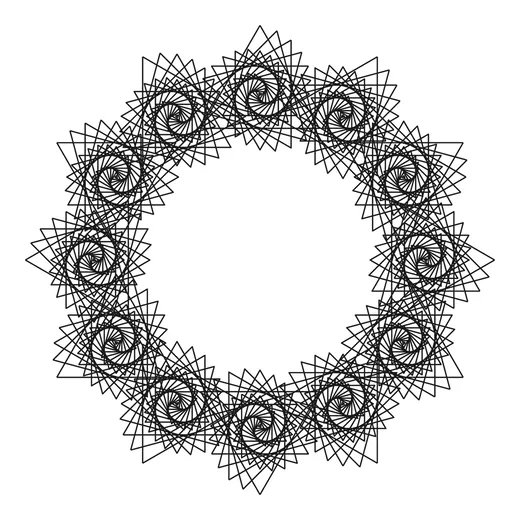
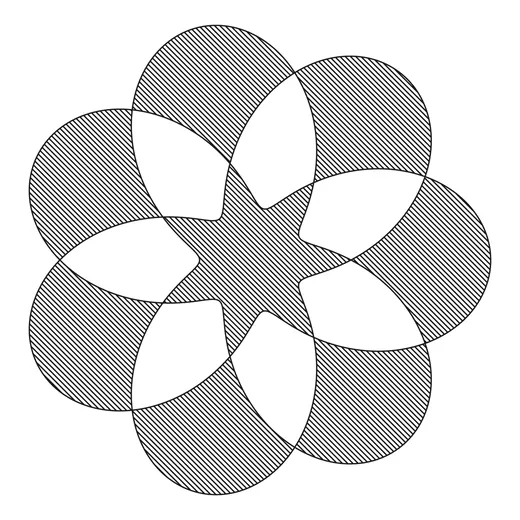
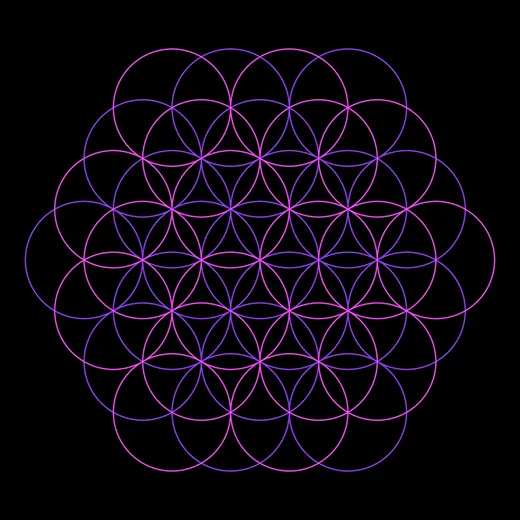
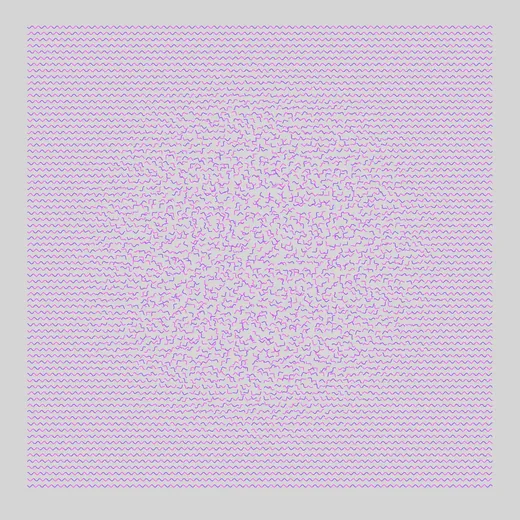
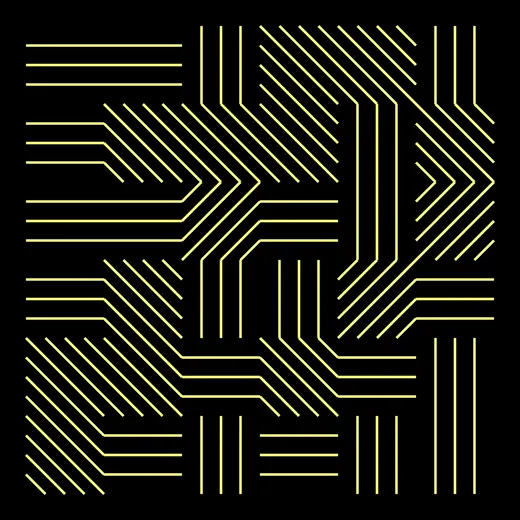
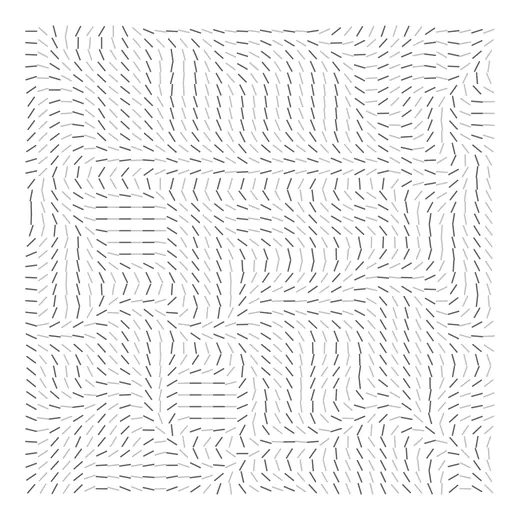
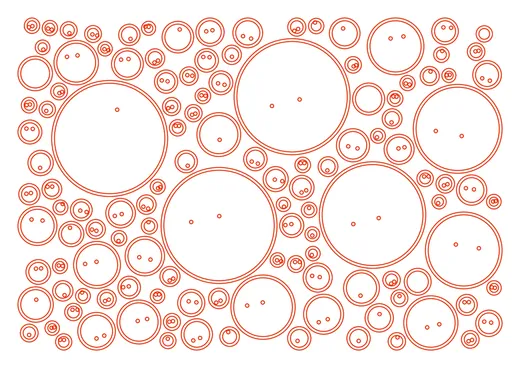
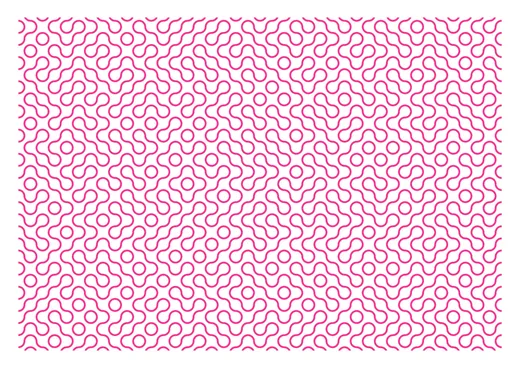
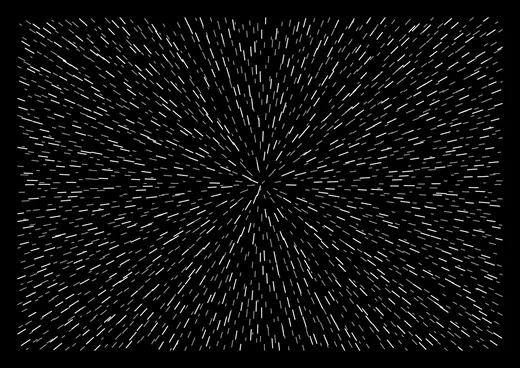
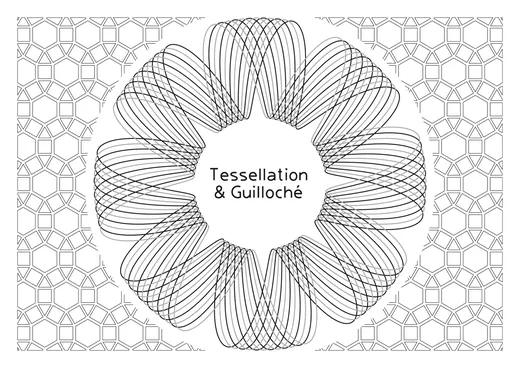
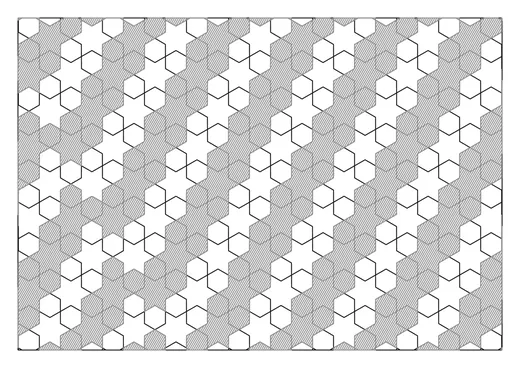
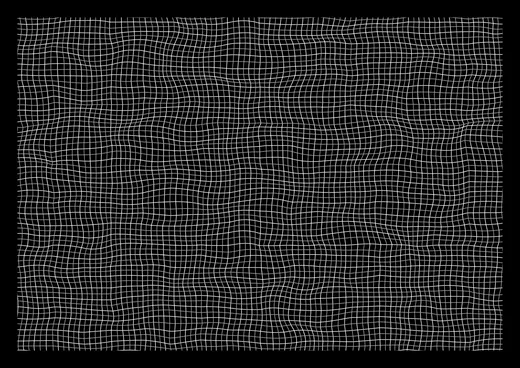
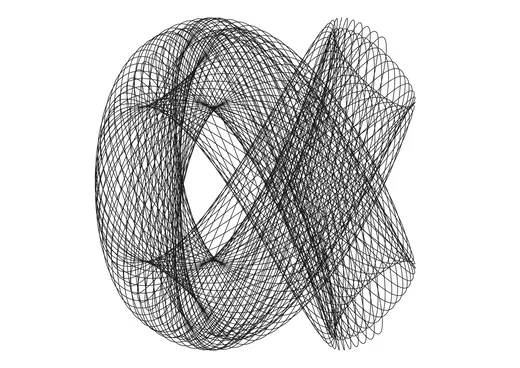
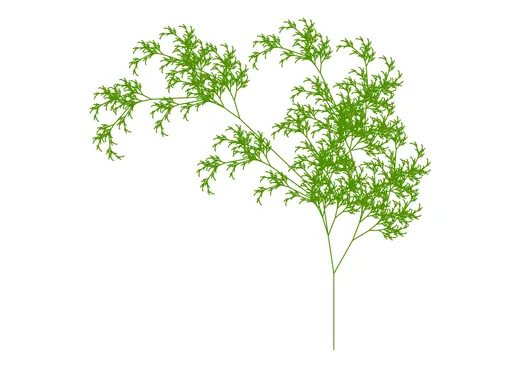
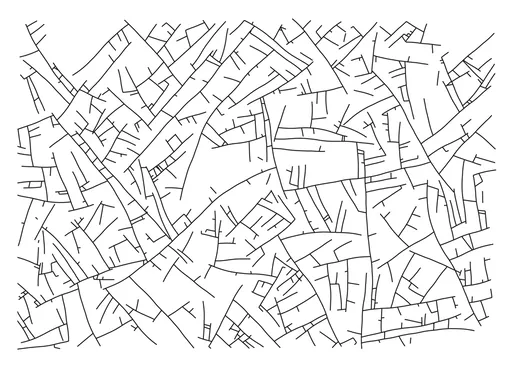
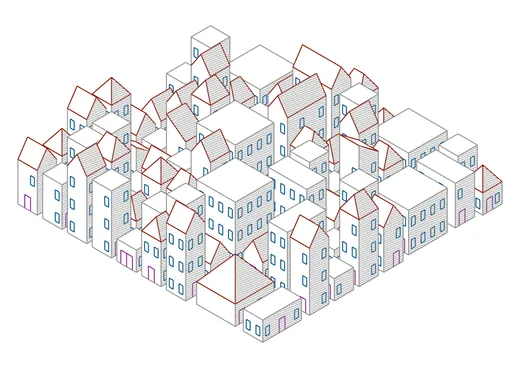
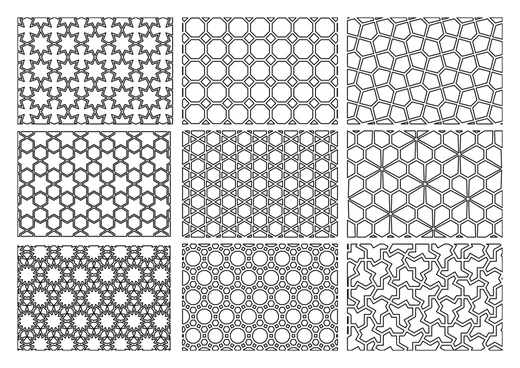
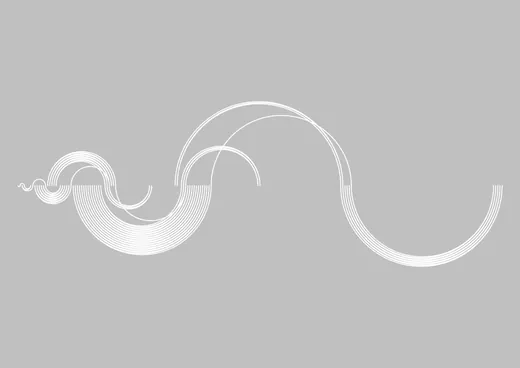
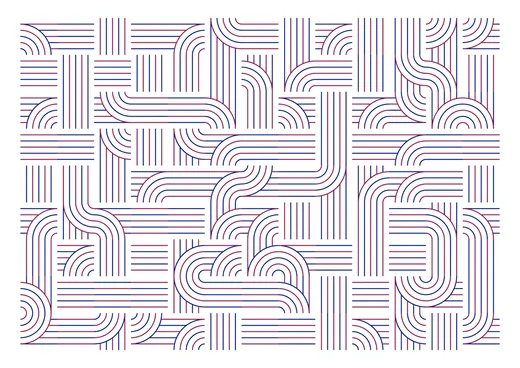
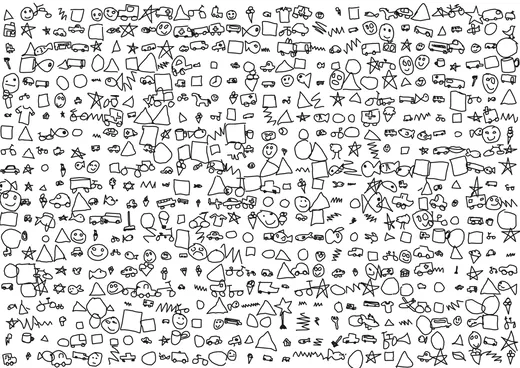
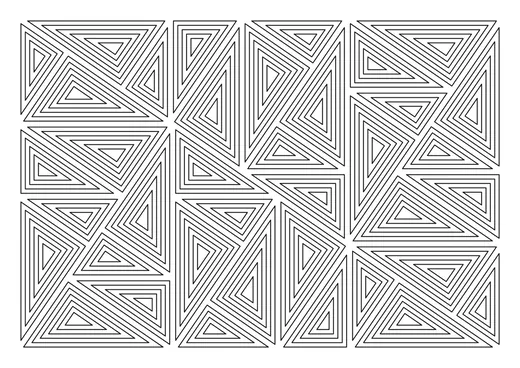
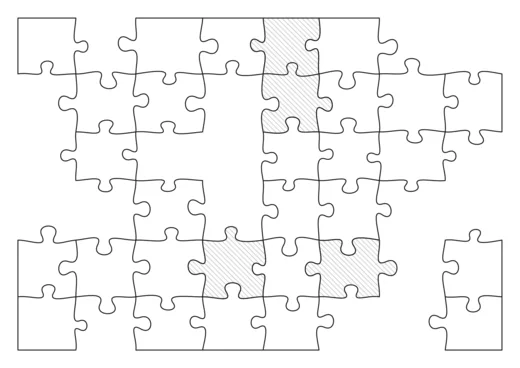
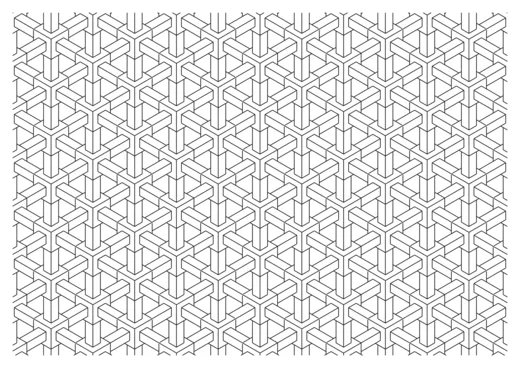
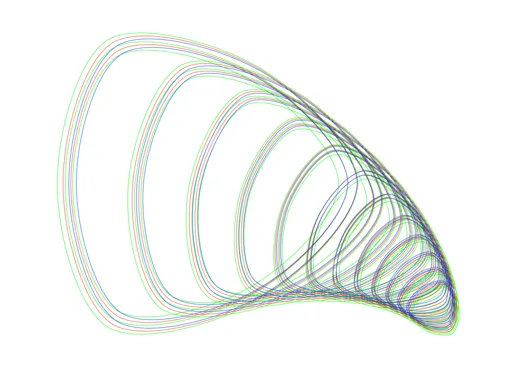
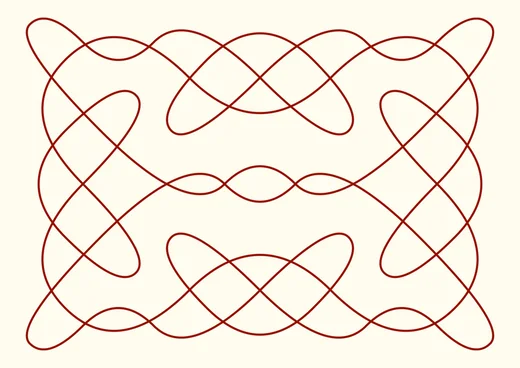
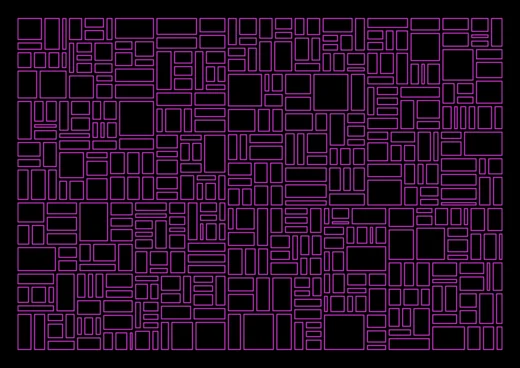
See what continuous strokes can do. These pieces were all designed in GD Studio and drawn on a pen plotter. Click any thumbnail to view it full screen.

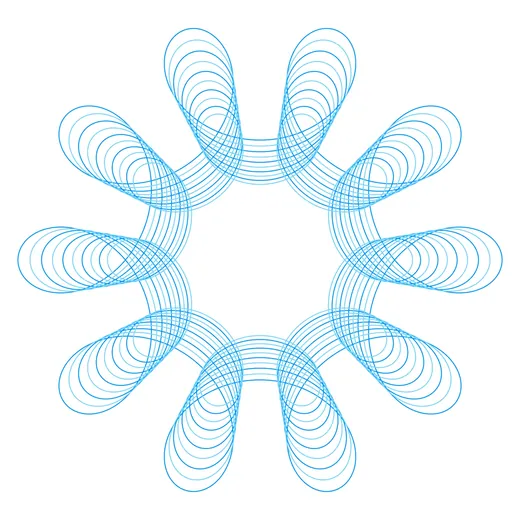
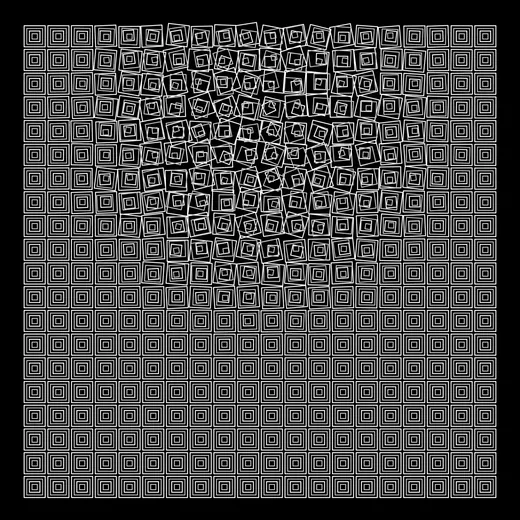
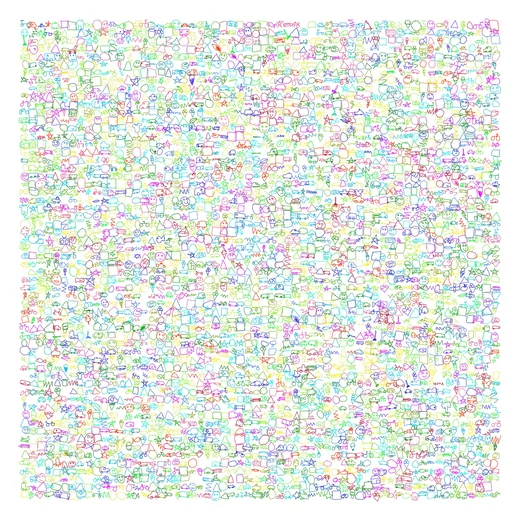
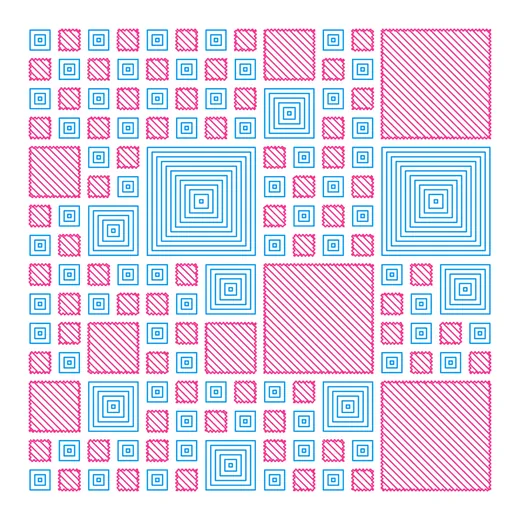
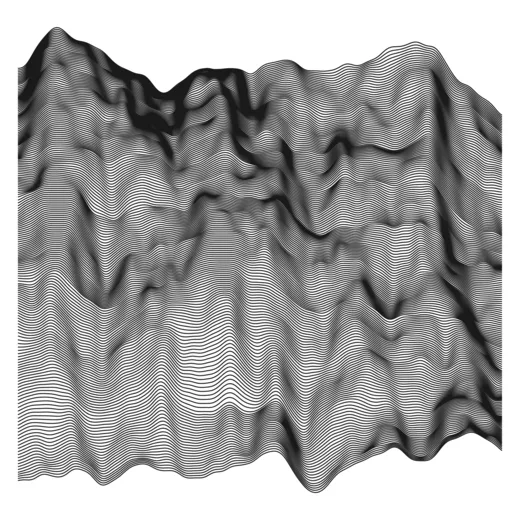
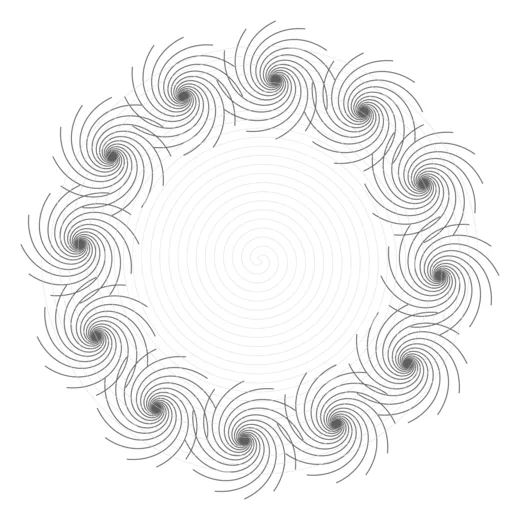
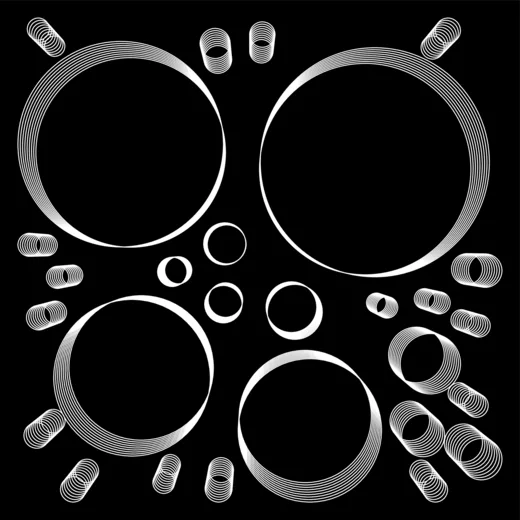
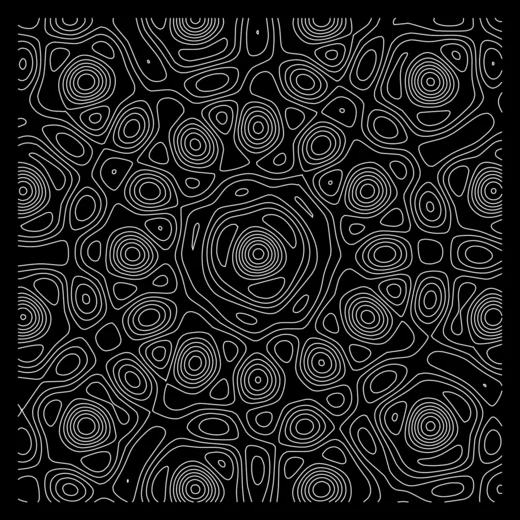
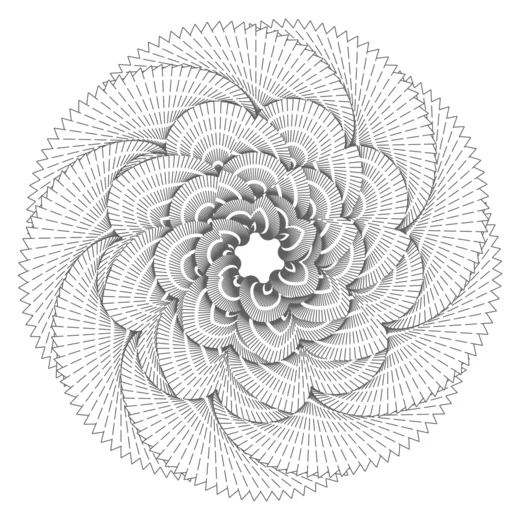
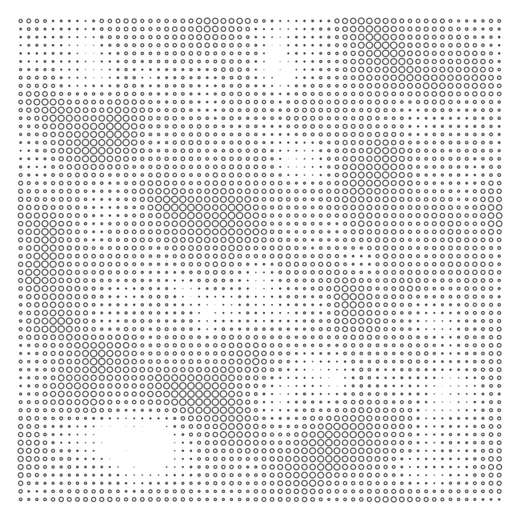

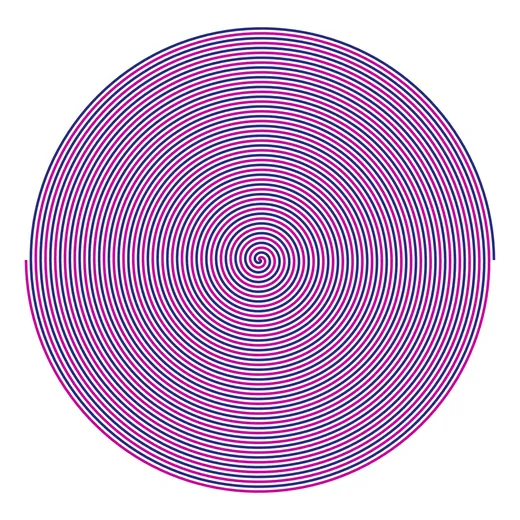
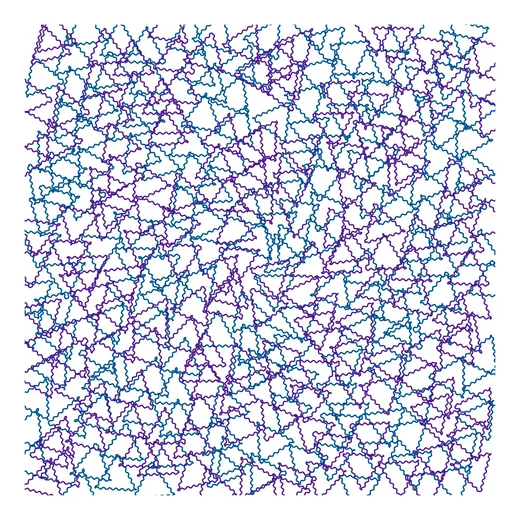
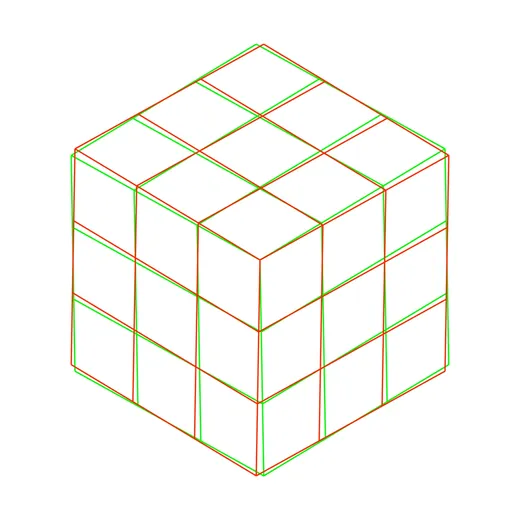
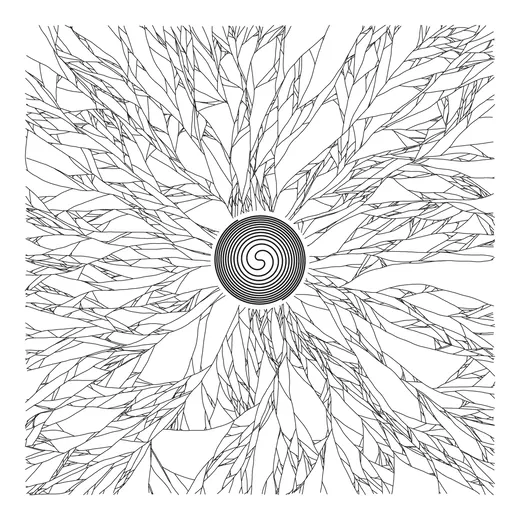
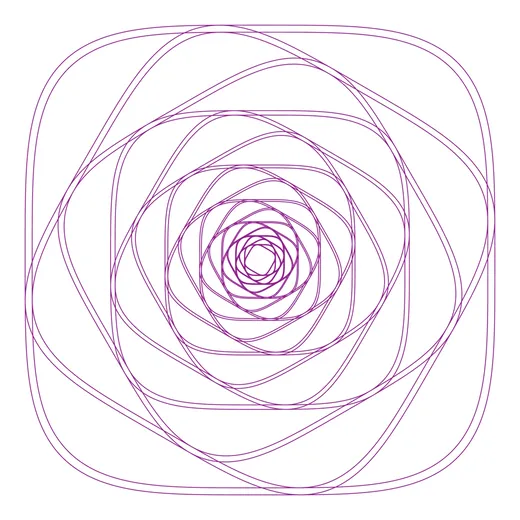
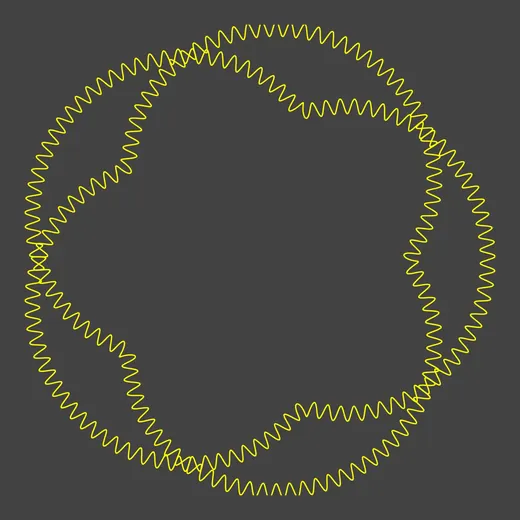

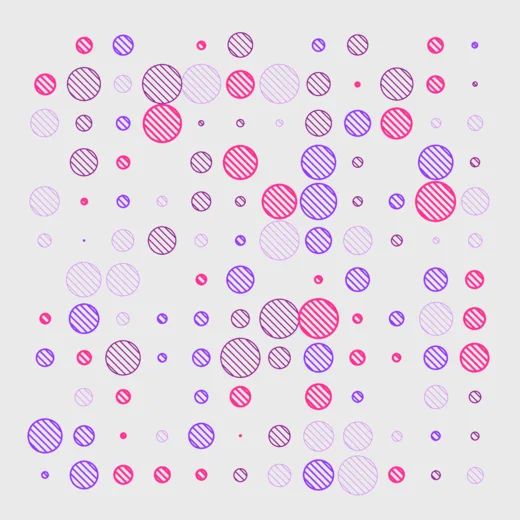
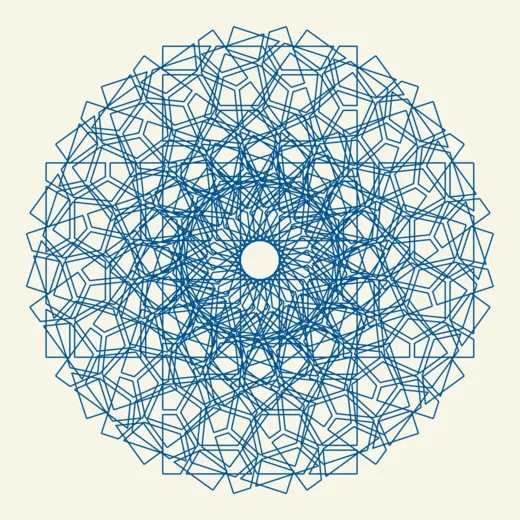
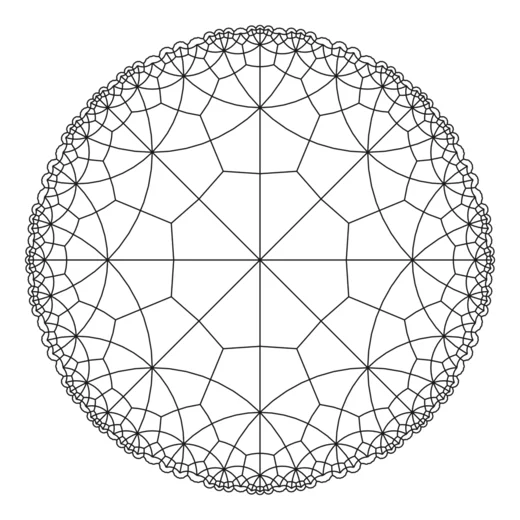

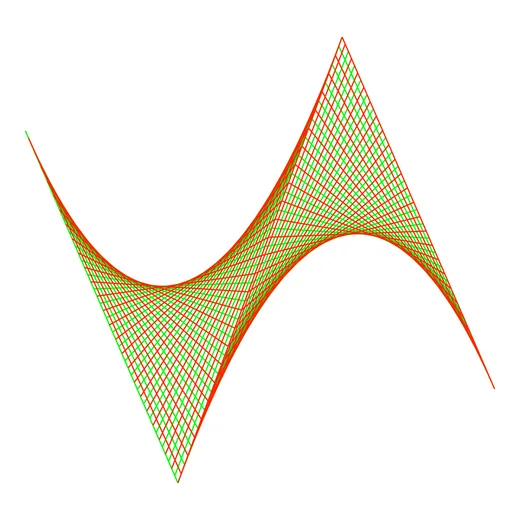
One-Time Purchase
VAT included (except US & CA)
Secure payment via FastSpring